Are you squinting at a subpar display that’s reducing your productivity?
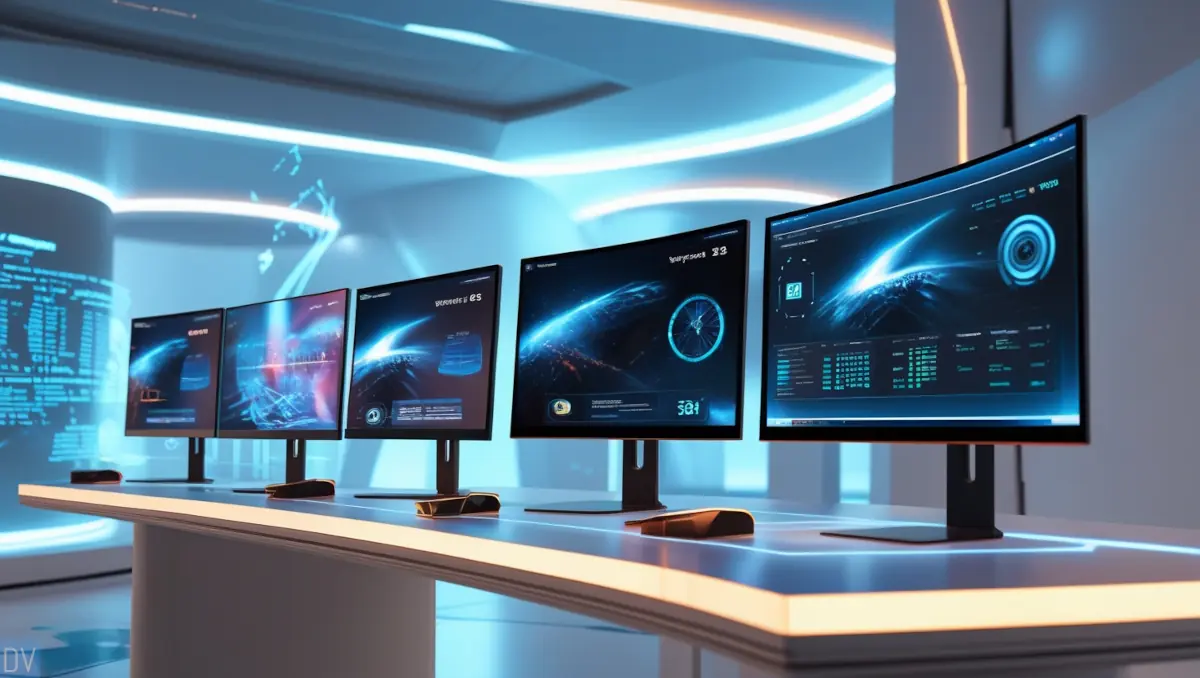
I’ve put together a list of the top 5 best home computer monitors – and these picks complement the best home computers!
From 4K displays to ultrawide curved screens. With the average person spending 6+ hours daily looking at screens, your choice matters! (Statistics ref: Statista.com)
This guide will help you find the perfect monitor for your needs in 2026.
In This Roundup
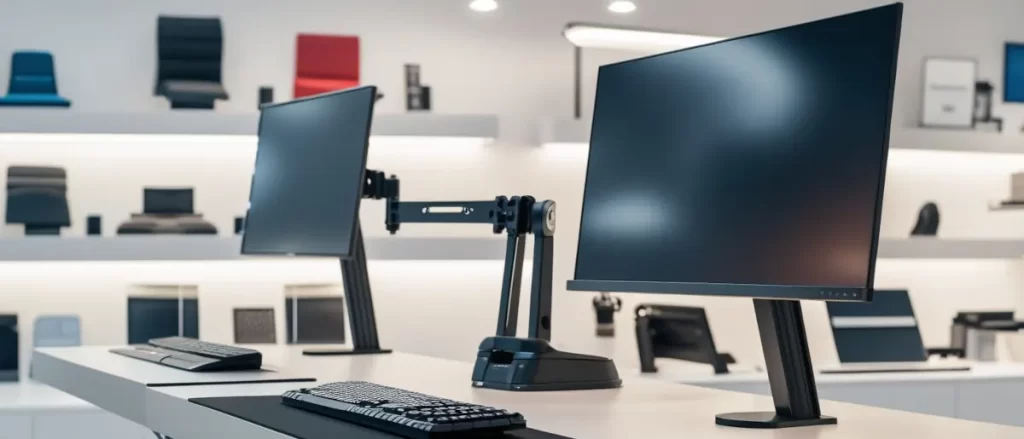
Monitor Overview





Understanding Monitor Specifications
Shopping for a new home computer monitor can be overwhelming with technical specifications! Resolution options, panel technologies, and refresh rates, but don’t worry, I’ve got you covered.
Let’s start with resolution.
Resolution: More Than Just Marketing Hype
While Full HD (1920×1080) monitors are still great for basic work and casual browsing, stepping up to QHD (2560×1440) is a game-changer and the resolution I recommend for most.
For a 27-inch monitor (my recommendation for multi-taskers and avid gamers), QHD hits the perfect balance between sharpness and performance.
Moving onto bigger resolutions – 4K (3840×2160) displays. They’re not for everyone.
4K makes the most sense if you:
- Work with detailed visual content
- Have a larger monitor (32″ or above)
- Own a graphics card that can handle it
- Plan to watch 4k movies
..and 8K (7680 x 4320) monitors… For 2026, I only recommend these high resolutions for professional video editors working with 8K footage.
Summary:
- Full HD Monitors – Great for work and casual web browsing
- QHD Monitors – Recommended for most users in 2026
- 4K Monitors – Recommended for the right size screen, graphics card, and movies
- 8K Monitors – Recommended for professional video editors in 2026
Panel Technologies: The Heart of Visual Quality
Don’t make the mistake of buying a TN panel monitor solely for its price and refresh rate. The colors are washed out, and the viewing angles are terrible.
Most users will prefer IPS panels, as they have excellent color accuracy and wide viewing angles.
VA panels offer better contrast for movies but slower response times, so they aren’t good for games.
OLED monitors provide perfect blacks and amazing contrast (though watch for burn-in), while Mini-LED technology offers similar benefits without that risk.
QLED is comparable to OLED but has higher brightness and HDR performance.
Each panel type has clear strengths depending on your specific needs.
Summary:
- TN Panel – Don’t buy!
- IPS Panel – Recommended for most users
- VA Panels – Recommended for movie users
- OLED Panels – Good for movies
- Mini-LED – Good for movies and games
- QLED – Great for movies and games
Refresh Rate: Not Just for Gamers Anymore
Moving from a 60Hz to a 144Hz monitor improved my overall computing experience, not just gaming! Everything feels smoother—scrolling web pages, moving windows around, even watching videos.
For productivity work, 60Hz is still perfectly adequate. But if you can afford it, a 144Hz monitor is one of those upgrades you don’t realize you wanted until you experience it.
Now, do you need 240Hz or even the new 360Hz displays? Probably not unless you’re a competitive esports player.
For general use, you won’t notice a difference between a 240Hz monitor and a 144Hz monitor.
Summary:
- 60Hz – Good for all but gamers
- 144Hz – Great for everyone
- 240 – 360Hz – Recommended only for pro gamers in 2026
Response Time: The Misunderstood Specification
What is the response time on a monitor?
For most home users doing productivity work, anything under 5ms is perfectly fine. You’ll only notice ghosting or smearing during fast-paced gaming or quick-moving content.
Summary:
- 1ms – Recommended for all in 2026
- Up to 5ms – Good for home computer monitors
Color Accuracy: More Important Than You Think
Color accuracy is crucial—poor accuracy distorts photos, alters web content, and causes eye fatigue. For basic home use, aim for 95% sRGB coverage; for creative work, consider Adobe RGB or DCI-P3.
Manufacturer specs can be misleading, so check independent reviews. Real-world performance varies, so test monitors in person or buy from stores with good return policies. Investing in a good display pays off—your eyes will thank you!
Summary:
- Unless you’re looking for a professional display, as long as you stick to the recommended panel type for home computer monitors, the color accuracy will be fine.
Choosing the Right Size and Form Factor
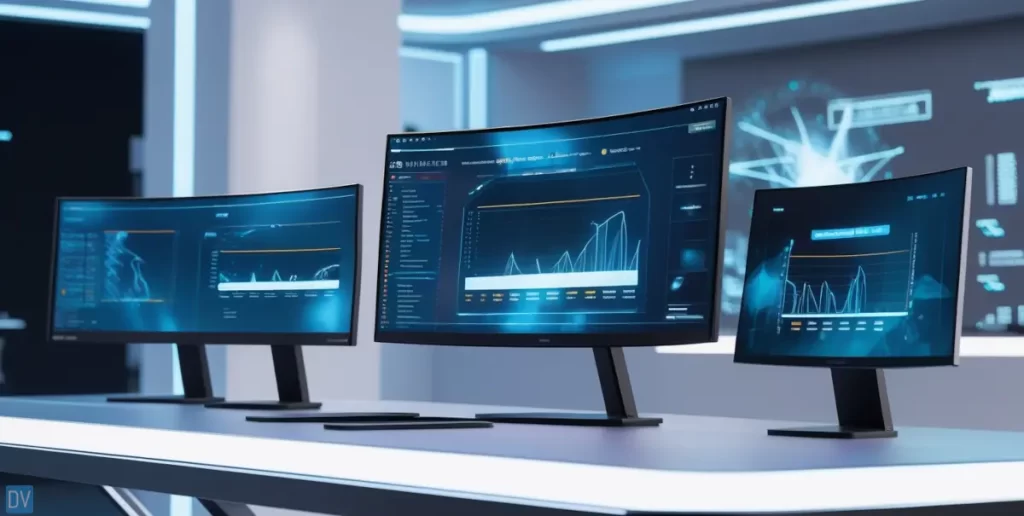
You might want to buy the biggest monitor you can afford!
That 34-inch ultrawide might look amazing in the store, but needing to turn your head to see different parts of the screen is not exactly ergonomic for 8-hour workdays!
Finding The Right Size For You
For a typical desk depth of 24-30 inches, a 27-inch monitor is perfect for most people. You can see everything without moving your head too much, yet it’s large enough for comfortable productivity.
24-inch displays work well if you have limited desk space or prefer to sit closer to your screen. Any smaller than this, though, and you might find yourself squinting or hunching forward.
Now, if you have a deeper desk or like to sit farther back, 32-inch monitors can be great.
Anything larger than 32 inches in a standard 16:9 format usually requires you to sit too far back for a comfortable home setup. That’s where ultrawide monitors come in!
The Ultrawide Revolution
Switching from a standard monitor to an ultrawide 21:9 display is a productivity game-changer. The 21:9 aspect ratio is like having two smaller monitors without the annoying bezel in the middle.
Then there are the truly massive super ultrawide 32:9 monitors, which essentially replace a dual-monitor setup.
Summary:
- 24” Display – Works well for most with limited desk space
- 27” Display – Recommended for every home computer monitor 2026
- 32” Display – Recommended for larger desks
- Ultrawide Display – Recommended to replace dual monitor setups
Curved vs. Flat: More Than Just Looks
For standard 16:9 monitors, the curve doesn’t add much benefit. But for an ultrawide monitor, the gentle curve helps bring the edges into your peripheral vision.
The 1800R or 1500R curve (the smaller the number, the more pronounced the curve) works wonderfully for single-user setups. The curve creates a more consistent viewing distance to all parts of the screen, which I’ve found reduces eye fatigue during long sessions.
Flat monitors still have their place, though! For precision design work where straight lines need to appear perfectly straight. They’re also better if you occasionally need to show your screen to others sitting beside you.
Multiple Monitors vs. One Large Display
There are genuine productivity benefits to having separate screens!
However, managing a multi-monitor setup comes with challenges:
- Mismatched heights and colors
- The bezels in the middle tend to get in the way
- Window management can be a bit more complicated than other setups
For most home users, I now recommend either a single larger display or a matching pair with identical models.
You could use a setup with a main 27-inch QHD monitor, in standard landscape orientation, with a second 24-inch monitor in portrait orientation for reading long documents. Forewarning, as good as this setup can be, it can be challenging to set up.
Don’t Forget About Ergonomics!
I have a full guide on ergonomics if you want to optimize for long-term health. For this guide, all you need to know is that a monitor arm or stand can be very useful for preventing eye strain.
Connectivity and Additional Features
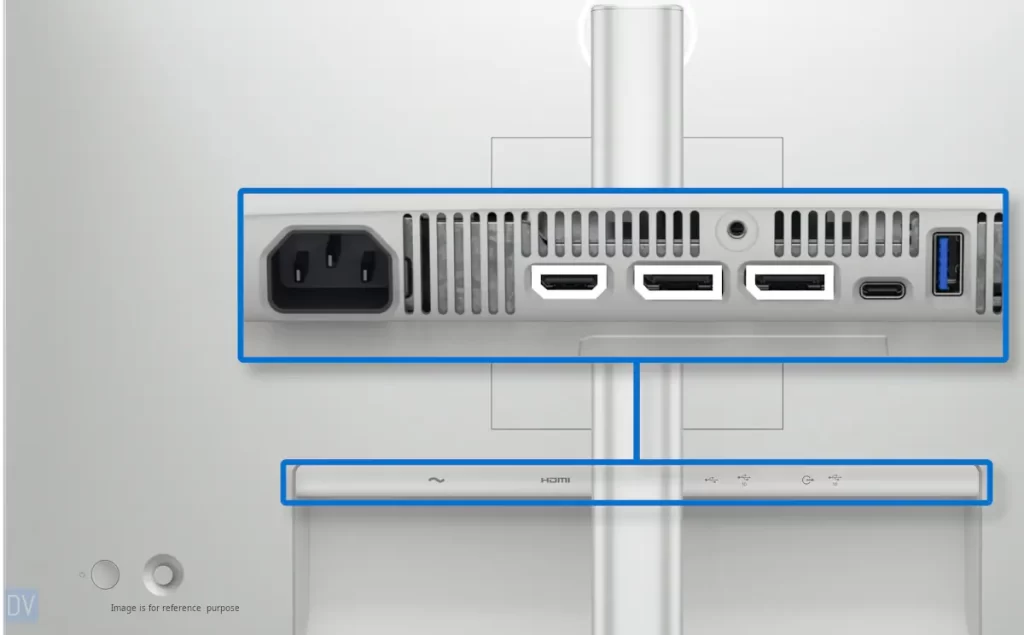
Check monitor connectivity before buying!
I learned the hard way when my older laptop couldn’t output 4K resolution via HDMI. After research and an emergency cable purchase, I fixed it.
In 2026, if you have the latest equipment, you shouldn’t have any issues, but always ensure compatibility first!
Port Selection: Future-Proofing Your Investment
Monitor ports are crucial for a seamless setup:
- HDMI 2.1 supports 4K at 120Hz+, ideal for gaming and productivity.
- DisplayPort 1.4 excels in high refresh rates and HDR for desktops.
- USB-C with power delivery simplifies connections, handling video, charging, and peripherals via one cable—great for ultrabooks.
- Thunderbolt offers fast data, video, and charging, perfect for Mac users.
Built-in Extras: Convenience vs. Quality
Check the built-in features, and confirm if you need any before you purchase!
- Built-in speakers save space but offer poor audio quality, making them useful only for video calls or quick clips.
- Monitor webcams vary—most 720p cameras struggle in low light, so a separate webcam is better for frequent calls.
- USB hubs are truly valuable, reducing clutter by connecting peripherals via USB-C. Always check USB versions—USB 3.0 is significantly faster than USB 2.0 for file transfers.
This last one is very niche, but I thought to add it in for those who use multiple computer systems.
KVM (Keyboard Video Mouse) Function: This technology initially started as a KVM switch; the idea is one keyboard, mouse, and monitor for multiple computers. Some monitors have this feature built in.
Eye Care Features: Underrated Importance
This is quite important, but also more niche and geared toward ergonomics.
Your eyes will thank you, though!
Blue light filters and flicker-free technologies:
- Low blue-light modes and flicker-free backlights are essential for long sessions.
- Some monitors also offer ambient light sensors for automatic brightness adjustment, a surprisingly helpful touch.
Setting Up Your Monitor for Optimal Performance
Proper setup and calibration make colors vibrant, text sharper, and reduce eye and neck strain. Take time to optimize your monitor!
Calibration: Colors That Actually Look Right
Most monitors ship with overly bright, oversaturated settings suited for store displays, not real work.
Eyeballing calibration doesn’t work. Start with built-in presets like sRGB for better color accuracy.
Use tools to fine-tune gamma, brightness, and contrast:
Pro tips:
- For color-critical work, a colorimeter (like an X-Rite).
- Reduce the brightness, 40–50% will greatly reduce eye fatigue and improve overall comfort.
Software Enhancements Worth Using
The right software can significantly improve your monitor experience. Here are my favorites:
- Windows PowerToys FancyZones – This free tool lets you create custom window layouts and snap windows into precise positions with keyboard shortcuts
- For multi-monitor setups, try Display Fusion Pro. It gives each monitor its own taskbar and allows for separate wallpapers, among many other features.
- Mac users have it easier with native Spaces functionality, but the Magnet or Rectangle apps provide similar window management benefits.
- If you work late, use f.lux or built-in features like Windows Night Light or macOS Night Shift to reduce blue light automatically as evening approaches.
And last up before we move onto today’s picks, a word for my budget-conscious readers.
Budget-Friendly Without Compromise
You don’t need a top-tier monitor to get great results!
- For general use, a 24-inch 1080p IPS monitor offers excellent value under $200.
- Budget gamers should prioritize a 144Hz refresh rate over 4K resolution.
- For creative work, solid sRGB coverage (95%+) is enough.
- Save money by buying last year’s models or certified refurbished units from reputable brands—same performance, lower cost.
The key: Match features to your actual needs. Avoid overpaying for specs you’ll never use.
Monitor Picks
Dell
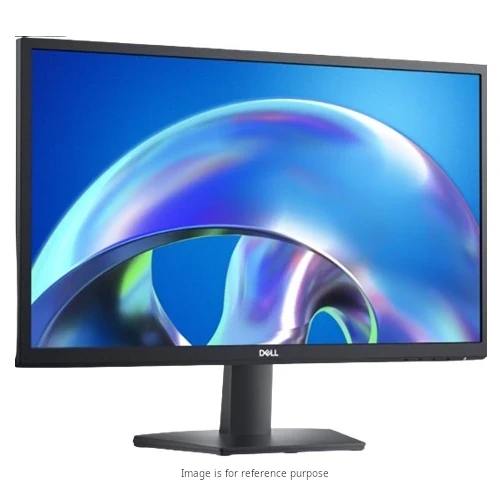
Dell Monitor
Best for a home office
Product Pros
Product Cons
Samsung
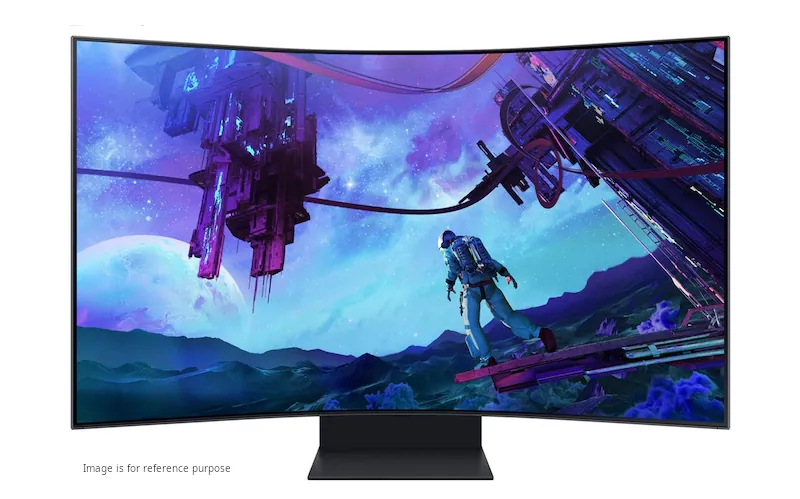
Samsung Monitor
Best for media professionals
Product Pros
Product Cons
HP
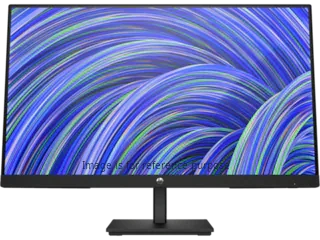
HP Monitor
Best for business
Product Pros
Product Cons
Lenovo
Asus
Asus Monitor
Best for gaming
Product Pros
Product Cons
In Conclusion
Don’t underestimate how much the right monitor impacts comfort and productivity.
After years of trial and error, I’ve learned that choosing the best display isn’t about chasing specs—it’s about matching your needs.
Whether it’s a budget 1080p IPS monitor, a high-refresh gaming display, or an ultrawide for multitasking, proper specs, features, setup, and ergonomics matter most.
Technology evolves fast, so investing in a slightly future-proof display pays off. Your monitor is your digital window—choose and position it wisely to enhance daily work, enjoyment, and longevity!
Need a computer to go with your monitor? Check out my computer buying guide here.
If you have more questions, check the FAQ’s below or browse my other guides here.
FAQ’s
What is a monitor panel?
A monitor’s panel type refers to the technology used to produce images and plays a key role in the viewing experience.
Understanding panel types (TN, VA, IPS) is essential, as they affect color accuracy, viewing angles, response time, and contrast, helping you choose the best option for tasks like gaming or content creation.
What is monitor burn-in?
Monitor burn-in, or image retention, occurs when a persistent image leaves a permanent discoloration on the screen, even after the original content is removed.
This often results from displaying static content for extended periods. Understanding burn-in is crucial, as it can permanently degrade image quality, especially on OLED displays
What is HDR?
HDR (High Dynamic Range) is an imaging technology that improves picture quality by displaying a broader range of colors and brightness levels, resulting in more realistic and vivid images.
It is particularly effective with HDR content, offering enhanced contrast between bright and dark areas.
Monitors with higher HDR ratings, like HDR600 and HDR1000, provide even greater visual clarity.
Additionally, the speed at which pixels change color can impact the overall HDR experience, ensuring smooth transitions and vibrant details in both bright and dark scenes.
What is monitor ghosting?
Monitor ghosting occurs when a faint, trailing image follows moving objects, resembling a ghost, due to slow pixel response times.
This issue is especially important for gamers and users of fast-paced content, as it can negatively affect the viewing experience and lead to eye strain
What is aspect ratio?
Aspect ratio refers to the proportional relationship between an image’s width and height, expressed as width: height (e.g. 16:9 or 4:3). Aspect ratio influences how content is displayed and perceived across various platforms and devices.