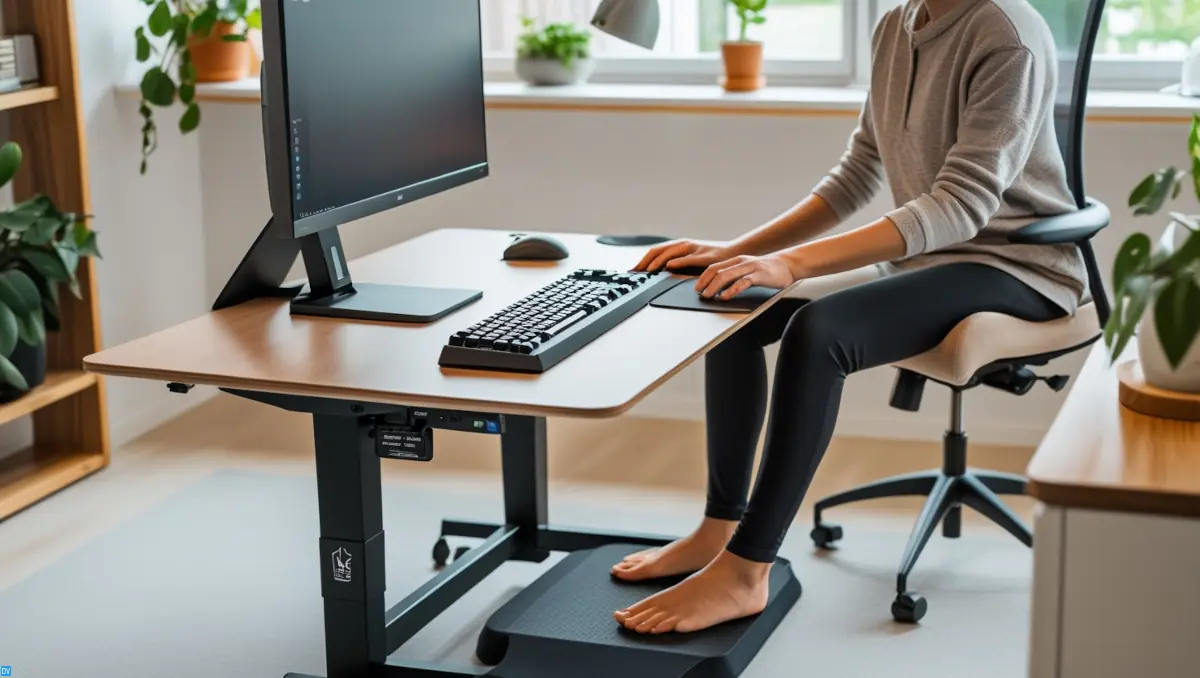
Setting up an ergonomic home office has never been more important!
With remote work becoming the new normal for many of us, creating a space that supports your physical well-being is crucial.
In this guide, we’ll explore everything you need to know about creating an ergonomic home office that works for you, from essential equipment to expert setup techniques.
Pro Tip: Remember to keep it original; your home office computer setup is your own!
Did you know that 65% of remote workers reported experiencing new or increased pain since working from home? (Statistics ref: Statista.com)
What You’re Gonna Learn
What Makes a Home Office Truly Ergonomic?
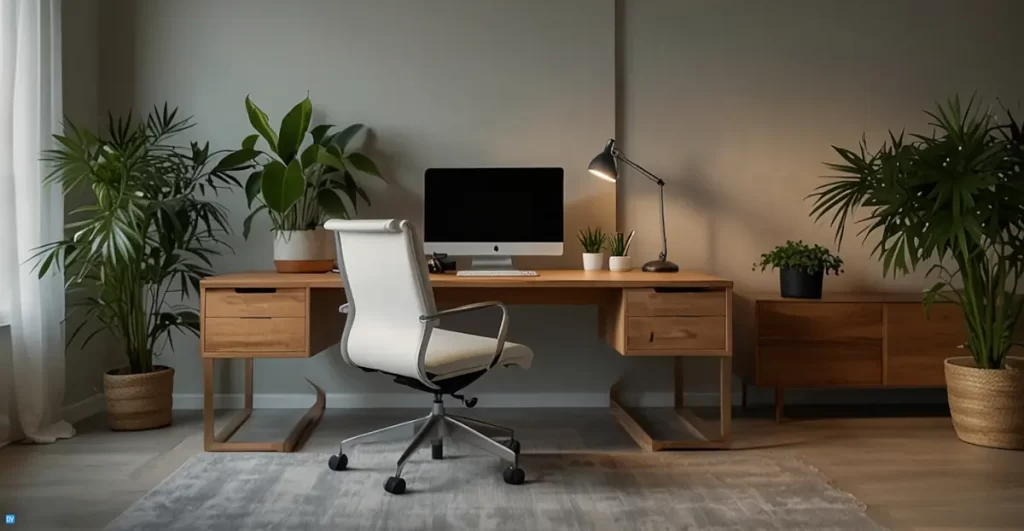
In short, ergonomics isn’t just about comfort—it’s about designing your workspace to fit your body instead of forcing your body to fit your workspace.
So what exactly makes a home office truly ergonomic? At its core, ergonomics is the science of designing equipment and spaces that work with our human bodies. Think of it as the sweet spot – where comfort meets functionality and health.
The foundation of good home office ergonomics starts with understanding neutral posture.
This isn’t a rigid, shoulders-back position—it’s actually the natural alignment where your body experiences the least stress.
Proper neutral posture:
When sitting, your feet should be flat on the floor, knees at about a 90-degree angle, back supported, shoulders relaxed, and arms resting comfortably with elbows also at roughly 90 degrees.
The difference between standard and ergonomic office equipment is night and day. Standard equipment is designed for the average person (whoever that is—I’ve certainly never met them!).
Ergonomic equipment, on the other hand, is designed to be adjustable to fit YOUR unique body.
I’ve found that three key principles define good home office ergonomics:
- First, proper alignment means everything is positioned to maintain that neutral posture we talked about.
Your screen should be at eye level, not forcing you to look down (hello, neck pain) or up. I used to balance my laptop on a stack of books before I got a proper monitor stand! - Second, support is crucial.
Your chair should support your back’s natural curve, your wrists should have support while typing, and your feet might need a footrest if they don’t reach the floor comfortably. - Finally, movement is essential.
The best ergonomic setup isn’t static! Our bodies aren’t designed to hold any position for hours on end. I now make it a point to change positions regularly, alternating between sitting and standing, using my height-adjustable desk.
The most common ergonomic issues I see in home offices include:
- Laptop-only setups that force you to either hunch your back or strain your neck
- Chairs that lack proper lumbar support
- Desks at the wrong height are causing shoulder elevation or wrist strain
- Poor lighting is causing squinting and headaches
- Screens positioned too low, too high, or off to the side
Pro Tip: Ergonomic solutions don’t have to be complicated. Sometimes it’s as simple as raising your monitor with a stand, adding a separate keyboard when using a laptop, or placing a small pillow behind your lower back.
The best part? When you get your ergonomic home office right, you’ll know it.
You’ll end your workday without the aches and pains, you’ll have more energy, and you might even find yourself more productive. Who knew that making your workspace fit your body could make such a difference!
Moving on, we’ll touch on the proper workspace setup.
Setting Up Your Ergonomic Workspace – Proper Positioning
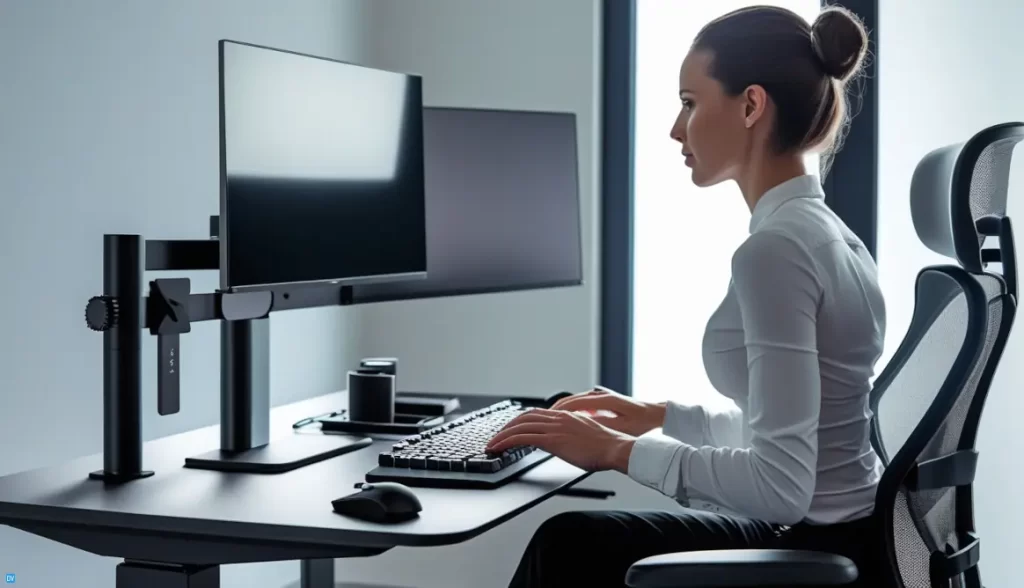
Getting the positioning right in your ergonomic workspace is critical! Proper positioning isn’t just about comfort—it’s about preventing long-term damage to your body.
Let me walk you through how to set up each element of your workspace for optimal ergonomic positioning. Trust me, these adjustments might seem small, but they make a world of difference!
Chair Height and Positioning
Your chair height forms the foundation of your entire ergonomic setup.
The ideal chair position should allow your feet to rest flat on the floor with your knees at roughly a 90-degree angle. Your thighs should be parallel to the ground or sloping slightly downward.
If you’re shorter, you might need a footrest to achieve this position.
Don’t forget about chair depth!
There should be about 2-3 fingers of space between the edge of your seat and the back of your knees. Sitting too far back in your chair can cut off circulation to your legs. Many ergonomic chairs have a seat slider to adjust this.
The backrest should support the natural curve of your spine. I’ve found that a slight recline of about 100-110 degrees (not the full 90 degrees I was trying to maintain) reduces pressure on your spine and is more comfortable for long periods.
Monitor Placement to Reduce Strain
Monitor positioning was a big revelation for me. The top of your screen should be at or slightly below eye level, and the monitor should be about an arm’s length away. When I finally raised my monitor with a proper monitor stand, my neck pain started disappearing within days!
If you wear bifocals or progressive lenses, you might need to position your monitor a bit lower to accommodate the reading portion of your glasses.
For those using dual monitors, position your primary monitor directly in front of you and the secondary monitor to the side. If you use both equally, center yourself between them.
I angle mine slightly inward to create a slight arc, which reduces how far I need to turn my head.
Keyboard and Mouse Positioning
Your keyboard position should allow your elbows to rest comfortably at your sides at about a 90-degree angle. Your wrists should be straight, not bent up or down. I used to have my keyboard too high, which caused constant wrist strain.
A keyboard tray can help if your desk is too high. You might be hesitant because they look clunky, but it does make typing more comfortable. Some even have negative tilt options, which helped relieve my wrist pain.
As for your mouse position, it should be close to your keyboard so you’re not reaching outward. Your arm should move from the shoulder for large movements, not just the wrist.
I switched to a vertical mouse that keeps my wrist in a more natural “handshake” position, and it’s dramatically reduced my discomfort.
Desk Height Calculations
Proper desk height is critical for maintaining good posture. Ideally, when your chair is adjusted correctly, your desk should allow your forearms to be parallel to the floor when typing.
For me, this meant my desk height was about 28-29 inches off the ground, though yours might differ depending on your height.
This is where a height-adjustable desk really shines—you can dial in the perfect height for your body. If you’re stuck with a fixed-height desk that’s too high, again, a keyboard tray can help. If it’s too low, try desk risers.
Lighting Considerations
Don’t underestimate the importance of proper lighting in your ergonomic setup! Poor lighting causes eye strain, headaches, and can even affect your posture as you lean forward to see better.
Natural lighting is best when possible, but be mindful of glare on your screen. I position my desk perpendicular to my window to get light without the glare that was causing me to squint and develop headaches.
For artificial lighting, use a combination of ambient and task lighting. I have an adjustable desk lamp that I can direct exactly where needed.
Remember, ergonomic positioning isn’t a set-it-and-forget-it thing. Our bodies are meant to move! I make small adjustments throughout the day and switch between sitting and standing positions. Listen to your body—if something doesn’t feel right, it probably isn’t!
Essential Ergonomic Office Equipment for 2026
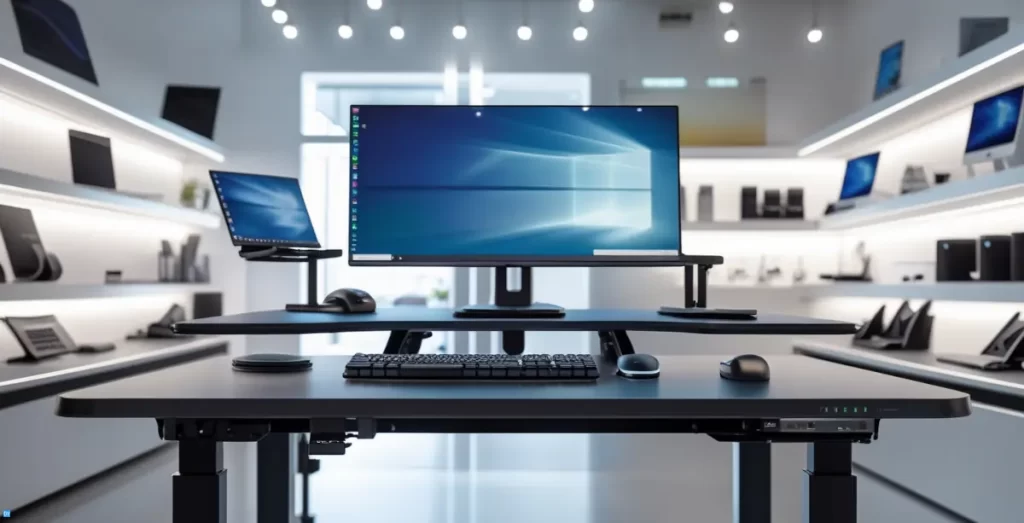
Investing in proper ergonomic equipment is crucial for the perfect ergonomic setup, and the technology has come so far in 2026.
Let me walk you through what I’ve learned about essential ergonomic office equipment.
The Ergonomic Chair: Your Foundation
I can’t stress this enough—a good ergonomic chair is worth every penny! After trying to “make do” with a $50 office store special that left my back screaming, I finally invested in a proper ergonomic chair with adjustable lumbar support, and the difference was immediate.
When shopping for an ergonomic chair in 2026, look for these features:
- Adjustable seat height and depth (your feet should rest flat on the floor)
- Lumbar support that contours to your spine’s natural curve
- Adjustable armrests that allow your shoulders to relax
- Breathable material (trust me, those mesh backs are a lifesaver during summer!)
- A headrest for those moments when you need to lean back and think
The newer models with posture-sensing technology are amazing, but can be pricey. A mid-range option like the ErgoFlex Pro or the Autonomous ErgoChair will serve most people well without breaking the bank.
Standing Desks: Movement is Medicine
Alternating between sitting and standing throughout the day is an option if you have long sessions in front of your computer.
In 2026, height-adjustable desks have become more affordable and feature-rich. The best ones have:
- Smooth, quiet motors for height adjustment
- Programmable height presets for quick transitions
- Cable management solutions (because nobody likes tangled cords!)
- Stability at various heights (cheap desks can wobble—super annoying when typing)
Using a dual-motor desk that transitions smoothly and can handle multiple-monitor setups without wobbling is great.
Some desks will give you a gentle reminder notification after sitting for too long—technology that truly supports wellness!
Keyboards and Mice: Don’t Ignore Your Hands
The best ergonomic keyboards in 2026 offer:
- Split designs that allow your wrists to stay in a neutral position
- Negative tilt capability (the front edge is higher than the back)
- Mechanical switches that require less force to press
- Programmable keys to reduce repetitive movements
Budget-Friendly Ergonomic Solutions
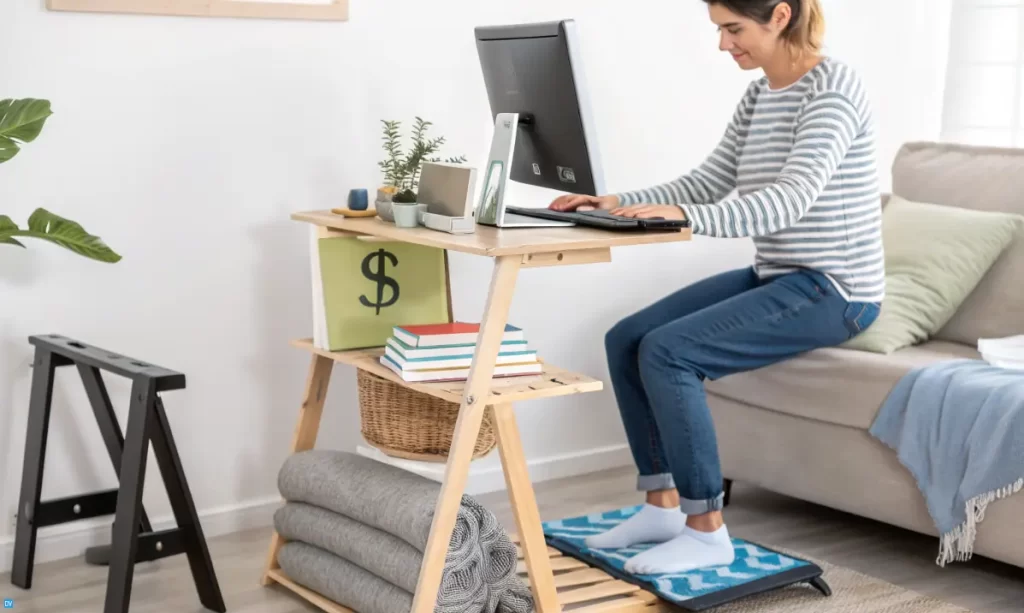
When I first learned about the importance of ergonomics, I nearly had a heart attack looking at the prices of some equipment! A $1,500 chair? A $900 standing desk?
As someone who was just starting out freelancing from home, those prices were way out of my league. But here’s what I’ve discovered after years of trial and error – creating an ergonomic home office doesn’t have to drain your bank account.
Let me share some of my favorite budget-friendly ergonomic solutions that saved my back without breaking the bank!
DIY Ergonomic Hacks for Existing Furniture
Before you buy anything new, look at what you already have! Some of my most effective ergonomic solutions have cost me next to nothing.
When my desk was too low, I created a DIY standing desk by stacking sturdy boxes and books to the right height. It wasn’t pretty, but it got the job done until I could afford a proper one!
For lumbar support, I rolled up a towel and placed it behind my lower back.
Need a document holder?
A clipboard leaned against your monitor works surprisingly well!
And a footrest?
I’ve used everything from a stack of books to a small storage container. Remember, the key is getting the height right so your feet rest flat and your knees maintain that 90-degree angle.
One of my cleverest hacks was using a wooden cutting board across the arms of my couch as a laptop stand during those days when I wanted to work somewhere other than my desk. It provided a stable surface and helped bring my screen closer to eye level.
Best Value Ergonomic Products Under $100
You don’t need to spend a fortune to get quality ergonomic equipment. Some of my favorite budget ergonomic purchases have been:
A monitor stand for around $30 that brought my screen to the perfect height. This single purchase probably did more for my neck pain than anything else! Some models even have little drawers for storage.
A separate keyboard and mouse for under $50 total. Just separating these from my laptop allowed me to position my screen at eye level while keeping my hands at the proper typing height.
You don’t need a fancy ergonomic keyboard to start—even a basic separate keyboard is better than hunching over a laptop!
An ergonomic mouse for $20-30. Vertical mice used to be expensive, but now there are plenty of affordable options that give you that natural handshake position without the premium price tag.
A lumbar support pillow for $25-40. While my rolled towel worked fine, having a proper pillow designed for lumbar support made a big difference in comfort for longer sitting sessions.
Anti-fatigue mats can be found for under $40, and they make standing at your desk much more comfortable. I found mine on sale for $25, and it’s been a game-changer for extending the time I can comfortably stand.
Gradual Upgrading Strategies
One approach that worked well for me was gradually upgrading my home office, focusing on the items that would have the biggest impact first.
I started with fixing my monitor height (biggest pain point), then saved for a better chair (second biggest issue), and finally invested in a height-adjustable desk when I could afford it.
I also recommend watching for sales and open-box deals. I scored my ergonomic chair at 40% off during a holiday sale, and it was the display model, so they took another 10% off for a tiny scuff that nobody would ever notice!
Another strategy is to check office liquidation sales. With companies downsizing or closing, there are often high-quality ergonomic office supplies available at steep discounts.
Repurposing Household Items
Look around your home—you probably have some items that can be repurposed for ergonomic support:
A firm couch pillow can become a back support cushion. A small storage box can become a footrest. A binder clip on your desk edge can serve as a cable management solution to keep your cords organized.
Even something as simple as a tennis ball can become a desk exercise tool for rolling out tight muscles in your hands and feet throughout the day!
The most important thing I’ve learned about creating an ergonomic home office on a budget is to focus on the principles rather than the products.
The goal is proper positioning and support, and sometimes the simplest solutions are just as effective as the expensive ones.
Your body doesn’t know if your monitor stand costs $300 or $3 in materials—it only knows if your neck is in proper alignment!
Creating an Ergonomic Workflow
Setting up ergonomic equipment is only half the battle—how you work throughout the day matters just as much!
I discovered this the hard way after investing in a beautiful ergonomic chair and standing desk, only to still end up with aches and pains because I’d sit for 4-hour sessions without moving.
Creating an ergonomic workflow means integrating movement and proper positioning into your entire workday. Let me share what’s worked for me after years of trial and error.
Incorporating Movement Into Your Workday
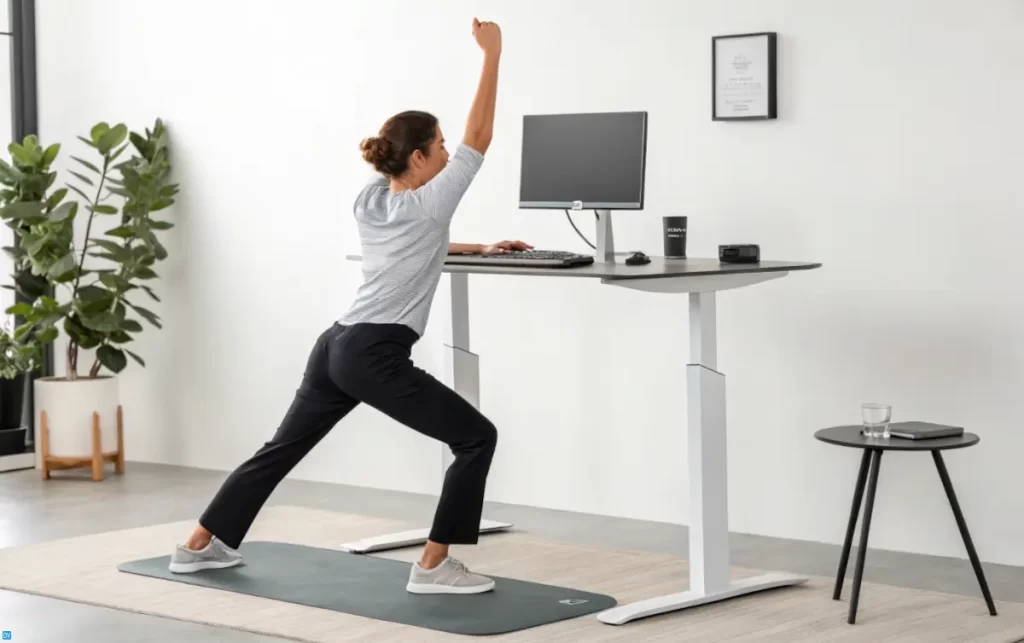
- Change positions frequently throughout the day.
- Use the 20-20-20 rule – Every 20 minutes, look at something 20 feet away for at least 20 seconds.
- Try not to stay in any position for more than 30-45 minutes. This could mean switching from sitting to standing at a height-adjustable desk. Other times, it means getting up to fill a water bottle or just walking around the room while on a call.
- Incorporate “movement transitions” between tasks. Finished a report? Stand up, stretch, and then start the next task. These micro-breaks help reset posture and give your muscles a chance to recover.
Setting Up Ergonomic Breaks and Reminders
Nowadays, there’s a plethora of tech tools and apps for monitoring ergonomic habits. Use these, even if just for a while, and you’ll create a lasting habit and may not need the tools after some time.
- Implement a system of reminders to help maintain good ergonomic habits.
- Use a break reminder app that follows the Pomodoro Technique: 25 minutes of focused work followed by a 5-minute break, with a longer break after four cycles. During these breaks, do some desk stretches or simply move around.
- Set reminders on a smartwatch or your phone to check your posture throughout the day. A gentle buzz on your wrist is a helpful reminder to reset to proper sitting posture before the muscle tension builds up.
- One more unusual but effective strategy is placing your water bottle a few steps away from your desk. This will force you to get up regularly to take a drink, building movement naturally into your day.
Stretches and Exercises for Desk Workers
I used to think desk exercises meant elaborate routines that would leave me sweaty and unprofessional. Not so! Some of the most effective stretches for ergonomic workflow are simple and subtle.
My favorite desk stretches include:
- Neck rolls: Gently rolling my head in a half-circle from shoulder to shoulder
- Shoulder shrugs: Raising my shoulders to my ears, holding for a count of five, then relaxing
- Wrist stretches: Extending one arm, gently pulling back on the fingers with the other hand
- Seated spinal twist: Placing one hand on the opposite knee and gently turning to look over my shoulder
I keep a small stress ball in my desk drawer for hand exercises, which helps with the tension that builds up from typing and using a mouse all day. Just a minute or two of squeezing and rolling it around makes a noticeable difference in how my hands feel.
For longer breaks, I’ll do a few desk yoga moves like the Restorative Pose
Balancing Sitting, Standing, and Moving
When I first got my standing desk, I made the mistake of trying to stand ALL day. By noon, my feet and lower back were screaming! I quickly learned that the key is balance.
Aim for a mix of positions throughout the day:
I typically start my morning standing, which helps me feel more energized. By mid-morning, I’ll switch to sitting for focused work. After lunch, I might take a walking meeting (phone calls while pacing around my office), and then alternate between sitting and standing for the afternoon.
I’ve found that my anti-fatigue mat makes a huge difference in how long I can comfortably stand. On days when I forget to pull it out, I notice my feet starting to ache much sooner.
The ratio that works best for me is about 60% sitting, 30% standing, and 10% moving around. But everyone’s different—find what works best for you.
That covers all the tips and tricks to get you set up with your ergonomic home office. I’ll add my take and research on the long-term health benefits for interest’s sake.
Click here to skip to my final thoughts if long-term benefits don’t interest you.
Long-Term Health Benefits of an Ergonomic Home Office
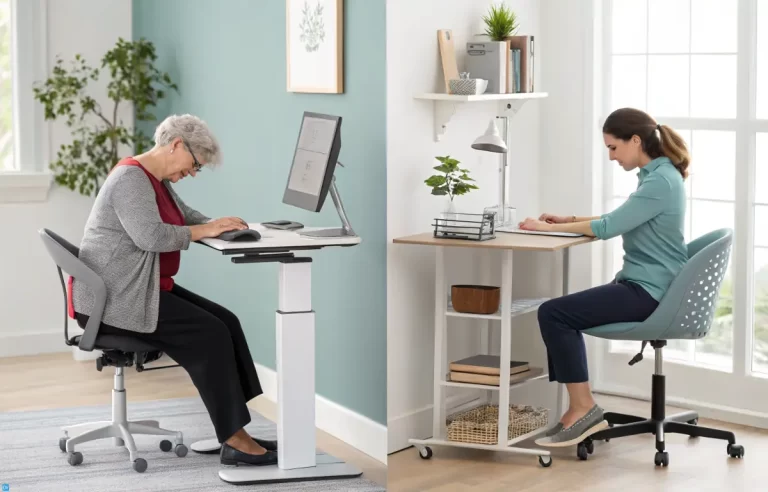
When I first invested in ergonomic equipment for my home office, I was just trying to deal with the immediate back pain that had me wincing every time I stood up.
Little did I know that creating an ergonomic home office would have such profound effects on my long-term health and well-being!
Five years later, the benefits have extended far beyond just making my workday more comfortable.
Preventing Repetitive Strain Injuries and Chronic Pain
The most obvious benefit of good ergonomics is preventing those nagging injuries that can develop from poor positioning day after day, wrist pain being one of those.
Repetitive strain injuries develop slowly—that’s what makes them so insidious. By the time you notice symptoms, the damage has already been building for weeks or months.
Physical therapists explain that proper ergonomic positioning prevents micro-traumas that accumulate into bigger problems.
Since setting up my ergonomic workspace, I’ve avoided the carpal tunnel syndrome that plagued several of my colleagues.
My ergonomic keyboard keeps my wrists in a neutral position, and my ergonomic mouse has eliminated the thumb and pinky pain I used to experience regularly.
It’s not just about wrists—my neck pain has virtually disappeared since raising my monitor to the proper height. The tension headaches I used to get by Wednesday of every week? Gone.
And the lower back pain that used to have me reaching for painkillers? A rare occurrence now, usually only when I’ve been traveling and away from my ergonomic setup.
Improving Posture and Core Strength
What surprised me most was how my posture improved, not just while working but in everyday life!
After months of sitting in a properly adjusted ergonomic chair with good lumbar support, I found myself naturally sitting and standing straighter, even when I wasn’t at my desk.
My core strength has improved, too. My ergonomic chair supports my back without doing all the work for my muscles.
Who knew that ergonomic equipment could improve how I carry myself in all aspects of life? The chronic shoulder ache I had developed from years of poor desk posture has gradually disappeared.
Reducing Stress and Fatigue Through Proper Setup
Physical discomfort is exhausting, even when it’s at a low level that you’re barely conscious of. I didn’t realize how much energy I was wasting just dealing with the discomfort of my old setup until I experienced the difference with proper ergonomics.
Now that I’m not constantly shifting positions trying to get comfortable, I have more mental energy for actual work. The fatigue reduction has been dramatic—I used to be completely wiped out by 3 PM, but now I maintain energy throughout the workday.
My ergonomic lighting setup has reduced eye strain significantly. Before, I would end the day with dry, irritated eyes and often a headache. Proper lighting with reduced glare has made computer work much less taxing on my visual system.
The stress reduction from physical comfort has had ripple effects into other areas of my life. I’m less irritable in the evenings, sleep better, and have more patience with my family. It’s amazing how physical discomfort can elevate stress hormones without you even realizing it!
Connection Between Physical Comfort and Mental Focus
The link between physical comfort and cognitive function is stronger than I ever realized. When I’m comfortable at my ergonomic workstation, my focus is sharper and my thinking clearer.
I used to find myself losing concentration after about 45 minutes at my old desk. Now, I can maintain deep focus for much longer periods. My productivity has improved not because I’m working longer hours, but because the hours I do work are more effective.
Decision fatigue sets in much later in the day now. I believe this is partly because I’m not using up mental resources dealing with discomfort. When your body is supported properly, your brain has more bandwidth for actual work!
Creative thinking seems easier. I’ve noticed I have more “aha moments” and can think more flexibly when I’m not distracted by twinges and aches. My problem-solving abilities are enhanced when I’m physically comfortable.
Professional Productivity Gains from Ergonomic Setups
Beyond the health benefits, my ergonomic home office has delivered real professional advantages. The most obvious is fewer sick days—I haven’t had to take time off for back pain or headaches in ages!
My work productivity has increased substantially. Projects that used to take me all day now often wrap up by early afternoon, leaving time for professional development or getting ahead on other tasks.
The quality of my work has improved too—fewer errors, more creative solutions, and better attention to detail.
The energy conservation that comes from good ergonomics means I have resources left for professional growth at the end of the workday. Instead of collapsing exhausted after work, I often have energy to take online courses, network, or develop new skills.
Looking back, creating an ergonomic home office was one of the best investments I’ve made in my career and health.
The initial cost of good ergonomic equipment has paid for itself many times over in improved productivity, fewer health issues, and better quality of life. My only regret is not making these changes sooner!
Wrapping up
Creating an ergonomic workspace isn’t just about buying fancy equipment—it’s about designing an environment that works with your body instead of against it.
Creating your perfect ergonomic home office setup is imperative!
Throughout this guide, we’ve covered everything:
- Essential ergonomic equipment
- Proper positioning
- Budget-friendly alternatives
- Movement strategies
- Long-term health benefits
The journey to creating your ideal ergonomic setup might seem overwhelming at first, but even small changes can make a significant difference.
Key things to remember:
- Ergonomics is highly personal
- Experiment with different arrangements until you find what feels right for you
- Good ergonomics isn’t static—it’s dynamic
- The best ergonomic workstation is one that encourages you to change positions often
- Ergonomic solutions pay dividends far beyond just alleviating pain
I encourage you to take what you’ve learned here and make at least one improvement to your workspace today.
Your future self (and your back, neck, wrists, and eyes) will thank you!
What small change will you start with?