Is your computer struggling to keep up with your daily tasks?
Thinking about upgrading your home computer?
You’re not alone!
According to a study by Tech Consumer Reports, over 60% of home computer users experience significant slowdowns before considering a complete replacement.
But here’s the good news – strategic upgrades can dramatically extend your computer’s lifespan and performance!
Whether you’re looking to speed up everyday tasks, enhance your gaming experience, upgrade your home office computer setup, or simply make your aging machine feel new again, this comprehensive guide will walk you through the most cost-effective upgrades for your home computer in 2026.
Side note: Moore’s law states that computing power increases every two years. Knowing when and how to upgrade your home computer is important.
Table of Contents
Signs It’s Time to Upgrade Your Home Computer
I’ve been there with the frustratingly slow computer, watching that spinning wheel of doom while trying to open a simple document.
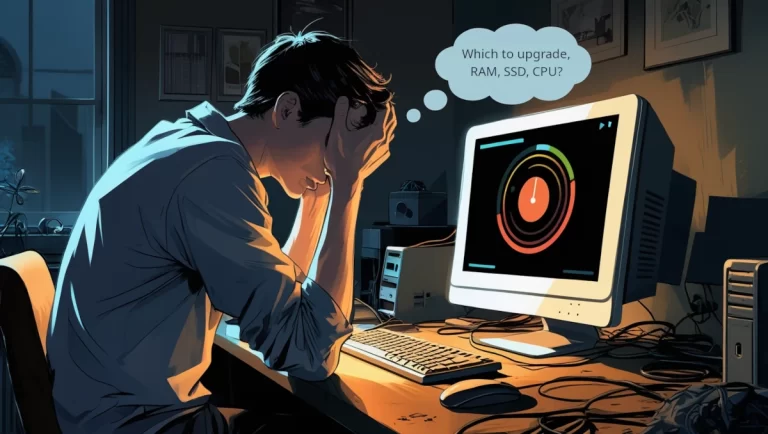
After 20+ years of building and upgrading computers, I’ve gotten pretty good at spotting when a machine needs some TLC versus a complete replacement.
One of the most obvious signs it’s time to upgrade your home computer is increasingly slow startup and shutdown times.
Computer performance issues have a way of sneaking up on you. If you’re experiencing frequent freezing or crashing during regular tasks that used to run smoothly, your system is practically begging for an upgrade.
Another telltale indicator is the inability to run newer software or operating system updates. Windows updates not being able to run is not a good thing.
Current operating systems and software are designed for more capable hardware, and if your machine can’t keep up, it’s holding you back.
Do you notice significant delays when multitasking or switching between applications? These delays aren’t just annoying – they’re stealing your productivity and time.
Pay attention to overheating issues or unusual fan noise. My computer started sounding like a small aircraft taking off whenever I tried editing photos. These sounds indicate component stress and are your computer’s cry for help.
Knowing how to identify these signs will help you with the upgrade vs replace decision factors.
Setting Realistic Goals and Budget
If you’re unsure whether or not your computer needs to be upgraded, take time to determine what performance improvements you need.
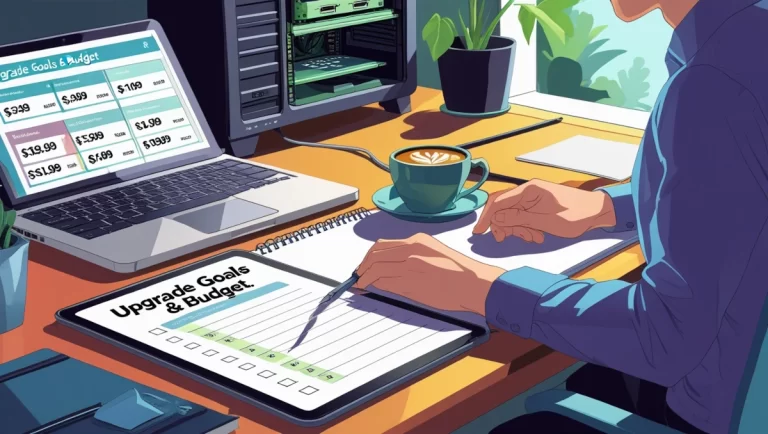
On one of my builds, I needed faster boot times and smoother multitasking for work. Gaming and video editing weren’t priorities. Your needs might be different, and that’s okay!
Your upgrade path should reflect your specific uses!
Establishing a practical upgrade budget saved my wallet. I initially thought I’d need to spend over $1,000, but after careful assessment, I realized I could make significant improvements for under $400.
A good rule of thumb: if upgrade costs exceed 70% of a new system price, consider the replacement route instead.
Understanding the ROI of different upgrades was eye-opening. Adding RAM gave me immediate multitasking benefits, while my graphics card upgrade barely made a difference to my workflow.
I wasted money there because I didn’t evaluate what would improve my computing experience.
Here are some computer diagnostic tools you can use to identify system bottlenecks.
- Windows Performance Monitor: To use, hold the Windows key and press “r”, in the run box type “perfmon” (without the quotes).
- UserBenchmark will help identify what’s slowing things down and what the replacement part/s would be.
Essential RAM Upgrades for Improved Multitasking
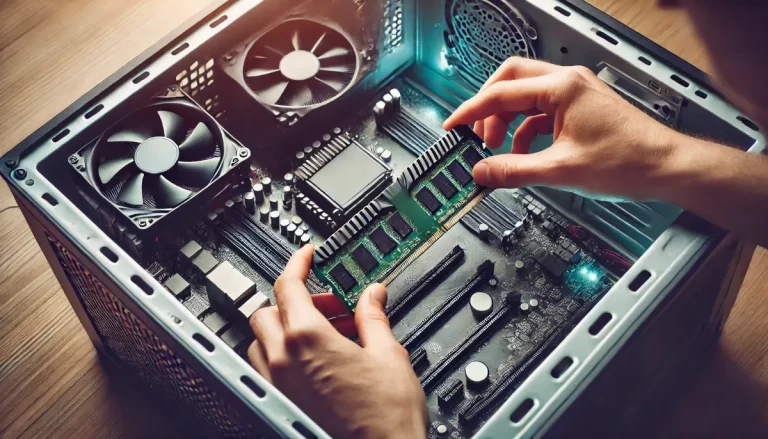
Checking your current RAM configuration is super easy. Even if you’re not tech-savvy.
Just press Win+R, type “msinfo32” and hit Enter. Under “System Summary,” look for “Installed Physical Memory (RAM).” When I did this, I discovered my “powerful computer” was limping along with only 8GB of RAM.
There are clear signs that insufficient RAM is causing performance issues.
If you’re seeing “High memory usage” warnings (that’s an obvious one).
If you’re not seeing a warning but experience speed issues, it could be caused by too little RAM.
This is another easy one to check.
Press Ctrl+Shift+Esc. Check the performance tab in your Task Manager; the RAM usage should not be more than 85%.
Rule of thumb for recommended RAM capacities:
- 8GB is the bare minimum for basic use in 2026
- 16GB is the sweet spot for most users
- 32GB is ideal if you’re into serious gaming or content creation
- 64GB+ is for specialized professional work
Understanding RAM specifications can be confusing. All those numbers and letters! DDR4 vs. DDR5, frequency, timing – it’s a lot.
But here’s the simple version: get the fastest RAM your motherboard supports. Check your motherboard specifications first, and if you need more help, any tech support worth their salt will be able to help you check this.
The memory upgrade process for installing additional RAM sticks isn’t nearly as scary as you might think.
- Power off, ground yourself (touch something metal)
- Open the case, find the RAM slots
- Align the notches, and press firmly until it clicks.
Be sure to install matched pairs in the correct slots for optimal performance. If you are too uncomfortable with the DIY option, contact your local tech support for professional upgrade services.
Storage Upgrades: The Most Noticeable Performance Boost
Switching from an HDD (Hard Disk Drive) to an SSD (Solid State Drive) has the most transformative impact on any computer! The most noticeable is boot time and shutdown speeds.
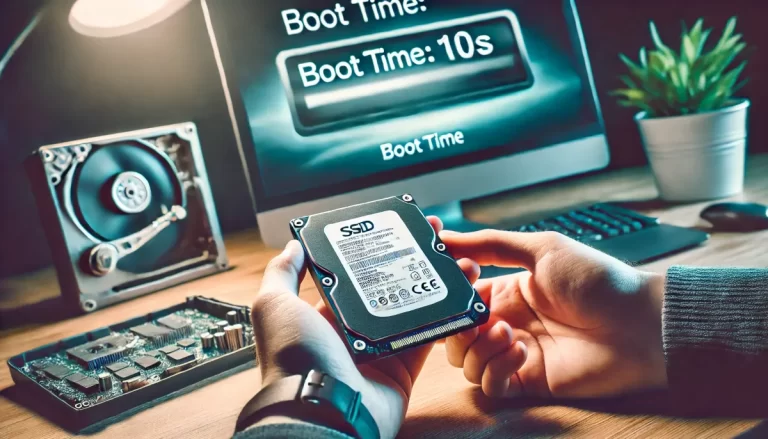
Next to RAM and the CPU, an SSD is the next most important component for a multitasking performance boost.
Understanding the different types of modern storage options can be confusing. SATA SSDs are the most affordable and common, while M.2 and NVMe drives offer dramatically faster speeds but cost more.
The type of hard drive your home computer needs depends on the motherboard, so check your manual before making a purchase.
There are upgrade advantages for Hard Disk Drives over Solid State Drives, for more cost-effective computer upgrades. HDDs are cheaper and can be installed as a secondary drive.
Install your operating system and apps on an SSD and large files on a secondary HDD.
For storage capacities, I recommend at least 500GB for your main drive in 2025. Remember that modern games and programs can be enormous – some games now exceed 100GB alone, so check your needs before deciding
After upgrading, don’t forget to optimize your storage performance.
Enable TRIM support for your SSD (Windows usually does this automatically), disable defragmentation for SSDs (it’s unnecessary and reduces lifespan), and consider enabling write caching for better performance.
Pro tip: To set up your new computer, clone your existing drive. This may seem technical, but it’s pretty straightforward with the right software.
One such app is Macrium Reflect (free version), to copy everything from your old drive to the new SSD. The whole process might take some time, but it’s safe, and you won’t have to reinstall Windows.
Graphics Card Considerations for Visual Performance
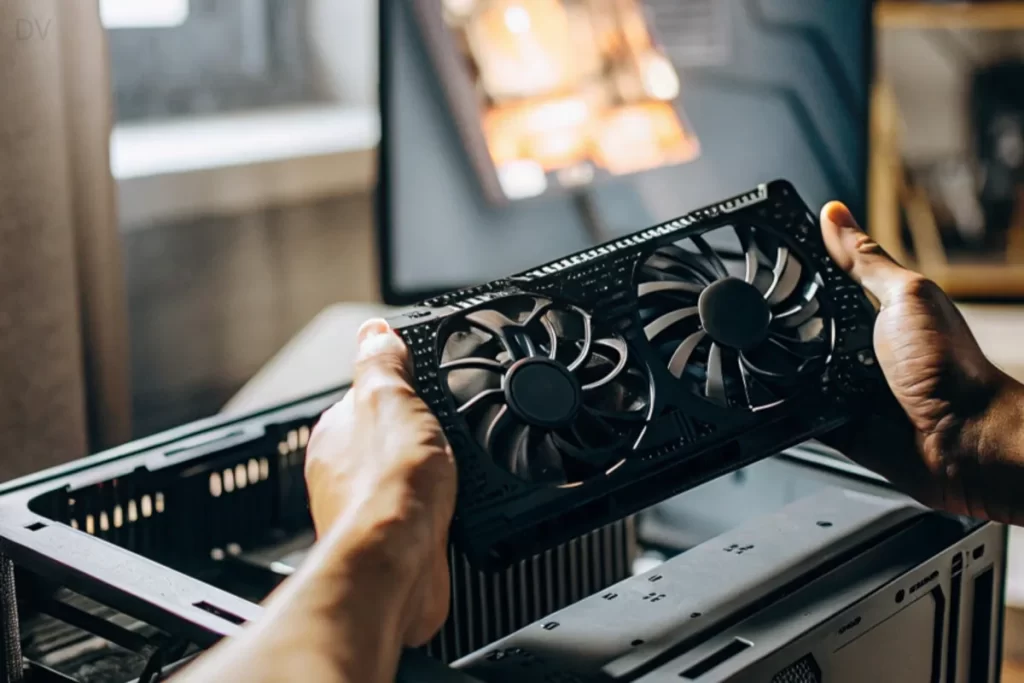
Before spending hundreds on a GPU (Graphics Processing Unit), determine if a graphics card upgrade makes sense for your specific needs.
If you’re mainly browsing the web, using Office applications, or doing light photo editing, your existing GPU (or even integrated graphics) might be perfectly adequate.
Compatibility is crucial. Before purchasing a GPU, check: physical size (will it fit in your case?), power supply requirements (does your PSU have enough wattage and the right connectors?), and motherboard compatibility (PCI Express version).
The GPU market in 2026 offers options across all price points.
- Budget cards ($150-250) can handle casual gaming and basic content creation.
- Mid-range options ($250-400) offer excellent 1080p gaming and good 1440p performance.
- High-end cards ($400+) are for serious gamers, professional creators, or multi-monitor setups.
I went mid-range, and it’s been perfect for my occasional gaming and photo editing.
Power supply requirements catch many upgraders off guard.
Modern GPUs can be power-hungry beasts!
Some systems need a power supply upgrade from 450W to 650W to support a new graphics card. Check both wattage requirements and connector types – some cards need 8-pin or even 12-pin power connectors that older PSUs don’t have.
A standard GPU installation is straightforward.
Remember to connect all the power cables to the card, and uninstall old graphics drivers before installing the new card. If you experienced bizarre graphical glitches, perform a clean driver installation.
CPU (Central Processor Unit) Upgrades: Challenges and Benefits
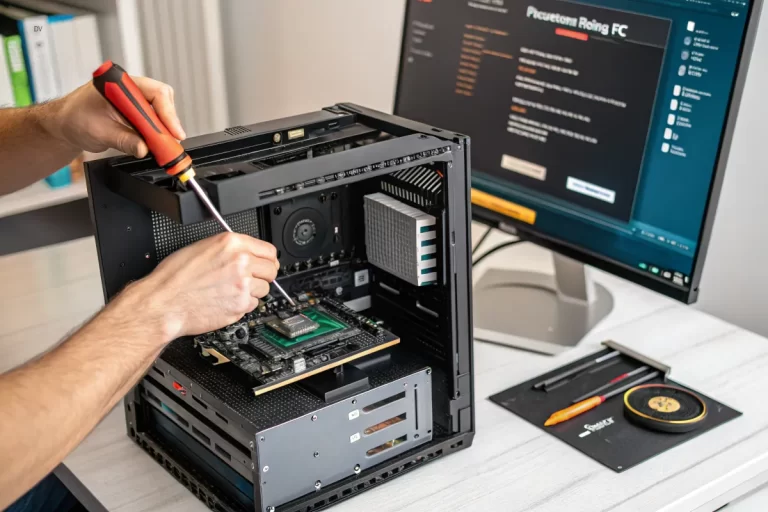
CPU upgrades can be tricky.
Understanding motherboard compatibility limitations is crucial. CPUs must match your motherboard’s socket type and chipset.
The two main differences (at the time of writting this) happen to be the two competing CPU company brands. Your home computer will use either an Intel or AMD CPU.
The performance improvements from newer generation CPUs can be substantial. Upgrading from a 4-core to an 8-core processor can improve complex tasks like video rendering. For everyday tasks, you might notice applications opening faster and everything feeling more responsive.
But here’s the truth – CPU upgrades aren’t always worth the investment. If your processor is less than 3-4 years old, the performance gain might not justify the cost.
In my experience, RAM and SSD upgrades often provide more noticeable improvements for less money. I prioritize those first before considering a CPU upgrade.
Cooling requirements increase with more powerful processors. Check if you need to invest in a better cooling solution.
Stock coolers that come with processors are often barely adequate. If you’re upgrading to a higher-performance CPU, budget for better cooling too. Your system’s stability depends on it!
Unlike other upgrades, I strongly recommend considering professional installation for complex CPU changes. Replacing a processor involves delicate work with thermal paste application and potential BIOS updates.
Power Supply and Cooling: The Overlooked Essentials
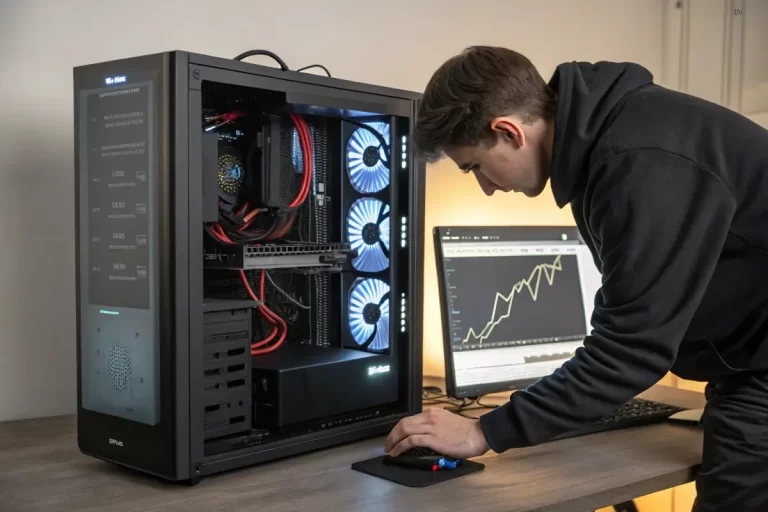
The power supply is the heart of your computer system, yet it’s often the most overlooked component.
If your system randomly shuts down during intensive tasks, it’s a clear sign your power supply needs upgrading before other components.
Calculating power requirements isn’t just guessing. I use online PSU calculators like the one from PCPartPicker to get an accurate estimate.
Rule of thumb: add an extra 100W to your calculations for headroom.
Always buy from reputable brands – this is not the component to cheap out on! Trust me, I’ve replaced too many fried components due to power supply failures.
Improving airflow can make a difference in system performance. When components get too hot, they throttle down their speed to prevent damage.
I added two 120mm case fans (about $20 total) and saw my GPU temperatures drop by 8°C under load. This translates to higher, more stable performance in games and during video encoding.
You don’t need to spend a fortune on cooling solutions.
Before investing in expensive liquid cooling, try simple improvements like:
- Adding case fans
- Cleaning dust from components
- Improving cable management
- Ensure your computer has adequate space around it for ventilation
These basic steps can reduce CPU temperatures by roughly 53°F or 12°C.
Cable management isn’t just about aesthetics, though a system does look much nicer once properly cable managed.
Properly routed cables improves airflow. I spent an hour reorganizing my cables with some inexpensive zip ties, and it paid off with lower temperatures across all components.
Plus, it makes future upgrades much easier when you can see and access everything!
Peripheral Upgrades That Enhance User (Your) Experience
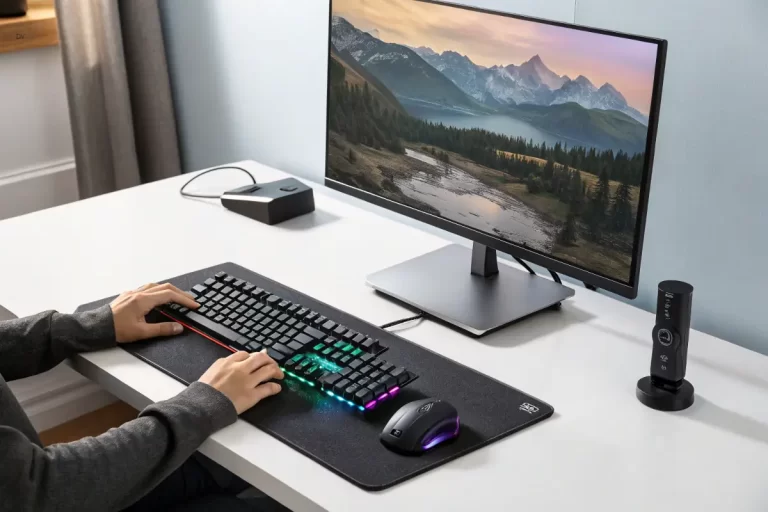
Monitor upgrades changed my computing experience more than I expected.
After years of using a basic 1080p display, an upgrade to a 27″ 1440p monitor with a higher refresh rate makes a stunning difference – text is sharper, colors are more vibrant, and everything feels more spacious.
A better monitor reduces eye strain and improves productivity.
Keyboard and mouse improvements sound trivial until you experience the difference. I replaced my basic keyboard with a mechanical one and immediately noticed I could type faster with fewer errors.
Similarly, a good ergonomic mouse can eliminate the wrist pain associated with long work sessions. These peripherals are the primary interface with your computer.
Audio system upgrades were a game-changer for my home office computer setup.
I replaced tinny built-in speakers with a modest 2.1 system, and suddenly video conferences were clearer, music was enjoyable, and I could hear subtle details in audio editing projects.
You don’t need the best equipment – even a $50 speaker upgrade can make a tremendous difference.
My webcam and microphone upgrades paid for themselves in the first month. Client video calls went from “Can you repeat that?” to crystal clear communication.
Better video conferencing tools are more professional and reduce miscommunication. In today’s remote work environment, these upgrades have become essential rather than optional.
External storage solutions can solve data management headaches. Rather than constantly shuffling files to make space on your main drive, consider adding an external drive for archives and backups.
There’s peace of mind knowing your important files are safely backed up. Another benefit is the option to take it with you when working remotely.
In Conclusion
Upgrading your home computer is often a smarter choice than purchasing an entirely new system.
By identifying your specific performance bottlenecks and addressing them with strategic upgrades, you can significantly extend your computer’s useful life while enhancing your computing experience.
Remember to assess your current system thoroughly, establish your performance goals, and choose upgrades that provide the best value for your particular needs.
Whether you’re looking to improve everyday productivity, gaming performance, or content creation capabilities, the right combination of upgrades can transform your existing computer into a system that feels brand new.
Start with the most impactful upgrades for your specific usage patterns, and enjoy the satisfaction of breathing new life into your trusted machine!
Ready to upgrade now? Click here to find the best deals for parts.
Decided to buy new? Click here for the best buying guide you’ll ever find on the World Wide Web.
If you still have more questions, check out my related posts and or the frequently asked questions below.
FAQ’s
Is it worth upgrading a 7-year-old computer?
Newer systems often offer advantages like improved performance and energy efficiency.
Reviewing the guide above can help you decide, but the best choice depends on your specific goals.
If it’s your daily driver or an outdated system, replacing it might be the better option. However, upgrading could be worthwhile if you intend to repurpose it.
What is the best option for a home computer?
The best options for a home computer depend on your goals. This article will help you decide.
How much RAM is enough?
The amount of RAM you need will depend on the applications you use.
Rule of thumb for recommended RAM capacities:
- 8GB is the bare minimum for basic use in 2026
- 16GB is the sweet spot for most users
- 32GB is ideal if you’re into serious gaming or content creation
- 64GB+ is for specialized professional work
Which brand of computer is the most reliable?
There are many brands of computers on the market today. As for the most reliable, from personal experience, I can say that all the well-known brands are reliable.
It is best to research a brand name if you are unsure, look at the reviews, and the history of the company.
To name a few of the big trustworthy brands (in no specific order):
- HP
- Dell
- Lenovo
- Apple
- Samsung
- Microsoft
- Lenovo
- Asus