

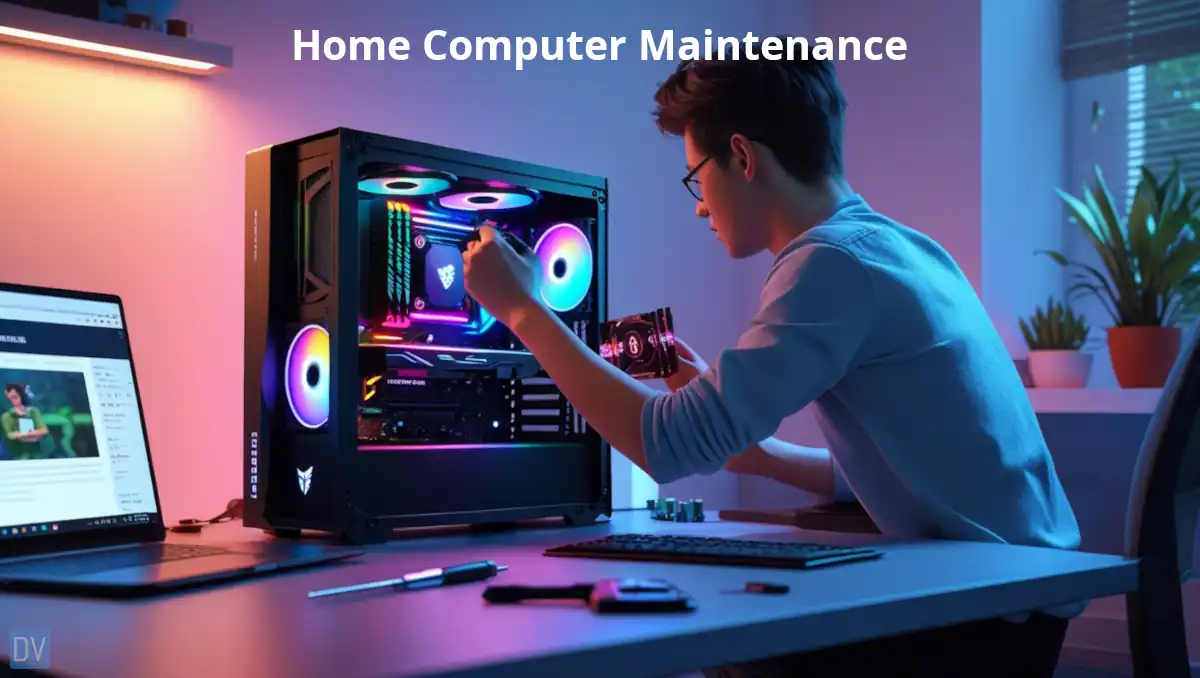
Regular maintenance isn’t just about avoiding crashes but protecting your digital world!
Whether you’re working from home, gaming, or just browsing social media, these maintenance practices will keep your computer running like new.
Even the most impressive home office computer setup becomes useless when plagued by preventable issues!
Did you know that proper home computer maintenance can extend the average computer’s lifespan by up to 40%?
(Statistics ref: Statista.com)
Let’s dive into the essential maintenance tips that will save you time, money, and frustration while maximizing the investment in your home computer maintenance routine!
IN THIS GUIDE
What is Home Computer Maintenance?

While the concept is simple, the process can get fairly technical.
SO, simply put, home computer maintenance is the practice of keeping your home computer clean, on the outside (hardware) and on the inside (software).
Let’s start with the hardware.
Physical Cleaning Techniques

Physical cleaning is the foundation of good home computer maintenance. For external components, I’ve found that a few simple tools make all the difference: microfiber cloths, compressed air cans, and isopropyl alcohol (70% or higher).
For keyboards, I turn the keyboard upside down and gently shake it first—you’d be amazed what falls out! Then I use compressed air between the keys to dislodge stubborn particles. For sticky keys, a slightly damp microfiber cloth works wonders, but be careful not to let moisture seep underneath.
When it comes to monitors, never spray cleaner directly onto the screen! I spray a small amount of alcohol-free screen cleaner onto a microfiber cloth and gently wipe in a circular motion. Trust me, those fingerprints and dust particles affect your eye strain more than you realize.
For desktop computers, I recommend a cleaning schedule every 3-6 months, depending on your environment. Pet owners like me might need to clean more frequently—my cat’s fur seems magnetically attracted to cooling fans! When cleaning internal components, always power down completely and unplug the system first.
Laptops need special attention since their cooling systems are more compact. I use compressed air at an angle to blow dust out of vents, being careful not to blow dust further into the machine. And remember, vacuums can create static electricity that damages components.
Hardware Updates and Upgrades

Let me share something I’ve learned after years of putting off hardware upgrades: waiting too long can cost you more money and productivity in the long run.
An old laptop can become a daily source of frustration, but a simple $50 stick of RAM can extend its useful life by two years!
The most obvious signs that you need hardware updates include increasingly slow performance, programs crashing frequently, loud fan noise, and the inability to run new software or operating systems.
For budget-friendly improvements, focus on the components that give you the biggest performance boost. In my experience, upgrading from a traditional hard drive (HDD) to a solid-state drive (SSD) made the single biggest difference in how my computer felt—startup times went from minutes to seconds, and everything felt snappier.
RAM is another relatively inexpensive upgrade that can breathe new life into an aging system. When I increased my desktop from 8GB to 16GB, multitasking became smooth again. I could keep multiple browser tabs open while editing photos without the system bogging down.
Before purchasing any components, I always check compatibility. For laptops, upgradability is limited—usually just RAM and storage.
Desktop computers offer more flexibility, but motherboard specifications determine what processors and memory you can install. Buying incompatible parts can be frustrating and expensive!
For complex upgrades like replacing a CPU or graphics card, honestly evaluate your comfort level.
You should be fine with RAM and SSD installations yourself, but when it comes to upgrading a graphics card with a complex cooling system, maybe let a professional do the installation, and avoid potential mistakes.
Now that we’ve got that covered, let’s move on to software.
Software Maintenance Essentials

Don’t be that person who clicks “remind me tomorrow” on update notifications for weeks. You’re at risk of losing precious family photos and important documents. Make software maintenance a habit.
Operating system updates aren’t just about new features—they often contain crucial security patches that protect your personal data.
I’ve set my computer to automatically download updates, but let me choose when to install them. This way, I can make sure I don’t have unexpected restarts during important work.
File organization transformed my productivity. I follow a simple folder structure with main categories (Work, Personal, Media, etc.) and yearly subfolders for documents.
Every month, I spend 30 minutes deleting downloads I no longer need and archiving completed projects. This keeps my searches lightning-fast and prevents that “full disk” panic we’ve all experienced.
Pro Tip:
Don’t let your disk usage exceed 85%. The operating system needs at least 15% of storage space to run optimally.
Disk cleanup tools have saved my aging laptop multiple times. Windows has a built-in Disk Cleanup utility that I run monthly to clear temporary files, empty the recycle bin, and remove unused installation files.
On my Mac, I use the Storage Management tool to identify space hogs.
One game-changing discovery was learning to manage startup programs. Too many applications launching at startup will turn your speedy computer into a sluggish mess.
I went from a 2-minute boot time to under 30 seconds just by disabling unnecessary startup items through Task Manager (on Windows) or Login Items (on Mac).
For monitoring system health, I rely on built-in tools like Task Manager (Windows) or Activity Monitor (Mac) to identify resource-hogging applications.
Pro Tip:
To open the Task Manager – Press Ctrl+Shift+Esc
To open the Activity Monitor – Use the spotlight search feature
When my computer feels sluggish, I check what’s consuming CPU or memory and close unnecessary processes. It’s like giving your computer room to breathe.
Software maintenance doesn’t just mean cleaning out old files and updating apps… think data and security.
Data Backup and Security

If you ever lose data, you’ll become almost obsessive about data backup strategies. Follow these steps now to avoid that situation!
The 3-2-1 backup rule has been my lifesaver: three copies of important data, on two different media types, with one copy stored off-site. Remember this and don’t fall victim to data loss. If this rule sounds too hard, at least have your important data one two different sources. SO, your working copy such as your computer, desktop or laptop and and external hard drive or a cloud storage option.
For home use, I’ve found that an external hard drive combined with a cloud storage solution provides the best balance of convenience and security.
I schedule automatic backups to my external drive weekly and use services like Backblaze or iCloud for continuous cloud backup of essential files.
When creating your backup schedule, think about how frequently your important files change. My work documents get backed up daily, while my photo collection gets a monthly archive. Remember, backup verification is crucial—I periodically restore random files to ensure my backups are working!
Password management has evolved dramatically from the sticky notes I used to hide under my keyboard (embarrassing, I know!). Now I use a password manager to generate and store complex, unique passwords for every account.
The relief of not having to remember dozens of passwords while maintaining strong security is incredible.
For malware protection, I’ve learned that a layered approach works best. I run scheduled antivirus scans, keep my browsers updated, and use ad-blockers to prevent malicious scripts.
But honestly, the best protection has been developing a healthy skepticism about email attachments and pop-ups—clicking mindlessly is how infections spread.
If disaster does strike, having a recovery plan makes all the difference. I keep a bootable USB drive with my operating system ready to go, along with instructions for accessing my backups. This preparation will save time and energy!
On that note, some of the more common issues can be resolved without the need to reach out to a tech for help. Here are some tips on how you can help yourself with little time and effort to get you up and running again.
Troubleshooting Common Issues

After troubleshooting countless issues across different systems, I’ve learnt to approach computer problems methodically rather than emotionally.
Slow performance is probably the most common complaint I hear (and experience). When dealing with a sluggish system, I first check for resource hogs using Task Manager or Activity Monitor.
Often, I’ll find a browser with 50 open tabs consuming memory! Other times, it’s a background process gone rogue. Simply identifying and closing these resource-hungry applications can restore performance immediately.
For persistent slowdowns, I’ve developed a three-step approach:
- First, I reboot (yes, the classic IT solution works surprisingly often). If that doesn’t help…
- I check for malware using updated security software.
- Finally, I look for disk space issues and clear out unnecessary files. This simple sequence resolves about 80% of the performance problems I encounter.
Connectivity issues are another frequent headache. When my home network starts misbehaving, I’ve learned not to immediately blame my internet provider.
Instead, I start with the basics:
- Restarting my router and modem (waiting a full minute between power-off and power-on).
- If that doesn’t work, I check for interference from other devices or neighboring networks.
Moving my router to a central, elevated location made a dramatic difference in my home’s Wi-Fi coverage.
Overheating kills more devices than you can imagine. Computers naturally get warm, but excessive heat causes components to throttle performance or shut down entirely.
To assist with this, you can monitor temperatures using free software like HWMonitor. Unusual fan noise—either excessive running or strange grinding sounds—often signals cooling problems.
Regular cleaning of vents and fans has prevented countless overheating issues in my systems!
Software conflicts can be particularly maddening to diagnose.
After experiencing a Windows update that caused my graphics software to crash repeatedly, I discovered the importance of system restore points.
Now I create these snapshots before major updates or software installations. When conflicts arise, I can roll back to a working state while I research a proper solution.
Adopting these practices will help you recognize when a problem is beyond your skills.
Issues involving blue screens with different error codes each time, hardware that’s physically damaged, or strange electrical odors are signals to consult professionals. Sometimes paying for expert help saves money in the long run.
These troubleshooting tips should help you get out of most sticky situations.
In Conclusion
After years of IT experience, I’ve discovered that home computer maintenance isn’t just about fixing problems—it’s about preventing them in the first place.
The few minutes I spend each month, and the habits I developed over time, on basic maintenance tasks save hours of frustration and potentially hundreds of dollars in repair costs or premature replacements.
Start small if this all feels overwhelming.
Even implementing just one tip from each category:
- Dusting your keyboard
- Updating your operating system
- Creating a simple backup
- Upgrading your RAM
- Learning to use Task Manager
Over time, this will make a noticeable difference in your computer’s performance and reliability.
Consistency matters more than perfection. My own maintenance routine has evolved over time, and I still occasionally forget to run my monthly disk cleanup. The key is getting back on track rather than abandoning maintenance altogether.
I encourage you to bookmark this guide and schedule regular maintenance sessions on your calendar. Even 15 minutes a week to start, then you can move on to a monthly schedule.
It will transform your relationship with your technology. Your computer has the potential to be a powerful tool rather than a source of stress—and proper maintenance is how you unlock that potential!
What aspect of computer maintenance are you going to tackle first?
Whatever you choose, your future self will thank you for the investment you make today in keeping your digital companion running smoothly for years to come.
Still have more questions? Check out the FAQ’s below or browse my other guides for answers.
FAQ’s
What is the best PC maintenance software?
The best PC maintenance software I can recommend from experience is CCleaner and Malwarebytes. Both developers have free versions for home computer maintenance, but the paid plans are recommended for regular users.
What are the 3 main types of maintenance?
The three types of maintenance include.
- Preventive maintenance – considerably the most important type, which we covered in this guide
The other types, which are more advanced for techs, and we covered briefly, are.
- Predictive maintenance
- Corrective maintenance
What is the best maintenance strategy?
The best maintenance strategy is preventative maintenance, not only for home computer maintenance, but for all computers.
What is TBM in maintenance?
TBM or Time Based Maintenance, is maintenance done on a schedule.


