Your 2026 Roadmap to Home Office Productivity
Picture this: It’s a Monday morning in 2026, and you’re about to start your workday. You sit down in your perfect home office computer setup.
Everything is just where you need it, and you’re ready to conquer the day. Sounds like the ultimate home office computer setup, sounds like a dream, right?
Well, buckle up, because I’m about to show you how to make that dream a reality!
Whether you’re a seasoned remote warrior or looking for a setup that will work for your home office setup, even one shared with the family, this guide will help you create the perfect setup.
There are many surveyed studies about the correct setup; most workers report that they are more productive with the right office space.
That’s right – your environment matters! So, let’s roll up our sleeves and transform your home office into a productivity powerhouse!
Choosing Your Home Office Computer: The Heart of Your Setup
Assess your needs: What do you really require?
You don’t want to end up with a clunky laptop that sounds like a jet engine every time you open more than three tabs.
So, lesson number one: assess your needs.
Like, really assess them. What does your job actually require?
Are you a graphic designer who needs to run power-hungry software, or are you mostly dealing with spreadsheets and emails?
Will you be sharing a computer with the family? What will they need?
Desktop vs. laptop: The epic showdown of home office titans.
This one’s tricky as the desktop vs laptop saga continues… and I’ve been on both sides of the fence.
Desktops are like the reliable workhorses of the computer world. They’re a little more powerful and customizable, and you can upgrade them without breaking the bank.
But here’s the catch – you’re stuck in one spot.
I remember the time I had a massive desktop setup, thinking I was living the dream. Then my neighbor started renovating, and suddenly my “office” sounded like a construction site.
I couldn’t just pick up my computer and move to a quieter spot.
Laptops, on the other hand, give you that sweet freedom. Need a change of scenery? Boom, you’re working from your porch. Just don’t forget ergonomics – hunching over a laptop for hours isn’t spine-friendly.
Mac or PC? Navigating the OS wars for your perfect match.
Okay, now for the ultimate tech world debate: Mac or PC? Cue the dramatic music. I’ve used both, and let me tell you, it’s not as simple as the commercials make it seem.
Macs are sleek, user-friendly, and great for creative work. But they come with a hefty price tag and might not play nice with some business software or the other devices you use.
PC’s are more customizable and generally cheaper, but they can be more prone to viruses and hiccups.
I once used a MAC Book Air, but being in the tech space and surrounded by 99% of people needing support using Microsoft Windows, well, as hard as I tried, it just didn’t work.
The takeaway from this is to choose based on your needs and the software you use, not the coolness factor. Not to worry though, I got you covered no matter which you decide on.
Specs that matter: RAM, processors, and storage – oh my!
Checking the recommended specifications for the most power-hungry application you plan to use is a good way to make sure you accommodate for all your system requirements.
Let’s geek out about specs for a sec. RAM, processors, storage – it’s enough to make your head spin.
RAM is like your computer’s short-term memory. Each application or new tab you open will use more RAM. The minimum I would recommend for a standard, spreadsheet, documents and email system is 8GB.
However, if you plan to use multiple browser tabs, along with spreadsheets and documents, I suggest going for 12GB. If you plan to do anything more resource-intensive then start at 16GB.
Processors are the brains of the operation. For most standard home computer specs, an Intel Core i5 or AMD Ryzen 5 will do the trick. But if you’re doing heavy video editing or 3D rendering, you might wanna level up to an i7 or Ryzen 7.
You can level up again to an Intel Core i9 or Ryzen 9, the thing to remember with the CPU is, that bigger is better in the long run and if possible, go for the latest and biggest that suits your budget.
Storage is where things get interesting. SSDs are like the sports cars of storage – fast and efficient, but a bit more pricey.
HDDs are more like reliable old sedans – slower, but you get more space for your buck. I use a combo: SSD for my operating system and key programs, HDD for storing files. It’s like having the best of both worlds.
I recommend a minimum of 512GB of SSD storage for your OS and apps. For the HDD, this will depend on your storage needs. On the flip side, if you can afford it, go with SSD’s for all your storage.
One more thing to be mindful of when checking the specs of the main driving force for your office setup… connections.
How many USB devices will you need to plug in? What type of monitor will you be using, and in the case of a laptop, will you need a LAN port (some laptops don’t have one)?
Budget-friendly options: Deal time.
Now, let’s talk money, because who doesn’t love a good deal, right? You don’t always need the latest and greatest to get work done.
Refurbished computers can be a goldmine if you know where to look. Find reputable sellers that provide some form of warranty.
Another budget-friendly tip: timing is everything. Shop during back-to-school sales or Black Friday for some killer deals. Just don’t get caught up in the frenzy and buy something you don’t need. Been there, done that.
Remember, the perfect home office computer is the one that meets your needs without breaking the bank.
It might take some trial and error, and a few facepalm moments, but you’ll get there. After reading this article, you will be armed with all the info you need to get it done!
Essential Peripherals: The Supporting Cast of Your Home Office
Let’s talk about the unsung heroes of your home office – the peripherals. Man, I used to think all I needed was my trusty laptop…
Monitor madness: Single, dual, or ultrawide? Size does matter!

I remember the first monitor I used; it was the old CTR (box style) with round edges. For folks who have never seen or heard of them, they were basically like an old TV set.
Squinting at a tiny 14-inch screen for hours. My eyes felt like they’d been through a sandstorm by the end of each day. Not fun.
Upgrading to a decent monitor was the best thing I have ever done for my eyes.
With a computer screen, bigger isn’t always better.
A 27-inch screen is pretty much the sweet spot for most. It gives you plenty of real estate without making you feel like you’re watching a tennis match every time you move from one side to the other.
But here’s where it gets interesting – dual monitor setup. Oh man, once you go dual, you never go back. It’s like upgrading from a studio apartment to a two-bedroom.
Suddenly, you’ve got space to spread out. I’ve got my email on one screen and my work on the other. No more alt-tabbing like a maniac.
Just be careful, or you might end up like me, trying to convince yourself that a third monitor is necessary. Spoiler alert – it’s not.
Keyboard and mouse magic: Typing comfort is no joke
Let’s move on to the humble keyboard. I used to think any old keyboard would do.
Then I spent months typing on a cheap, flimsy keyboard on a cheap, flimsy laptop.
My wrists felt like they’d been through a CrossFit session.
That’s when I discovered the world of mechanical keyboards. These babies are like the sports cars of the typing world. They’re clicky, responsive, and durable, and not to mention, they make you feel like a hacker in a 90s movie.
The only other option (in my opinion) is a chiclet-style keyboard. For most of my years working with computers, these have been my go-to style. The travel on the keystroke is shorter, making it more comfortable for those of us with shorter fingers.
A good ergonomic keyboard can save your wrists from a world of hurt. I tried one of those split keyboards once. It looked like something out of a sci-fi movie, and for the first week, I typed like I was wearing mittens. But once I got used to it? Pure typing bliss.
Handy tip: Always be mindful of your desk space, use a bottle (thermal or otherwise) with a cap, to prevent spills on your awesome equipment; keyboards are usually the first to go swimming.
Moving onto the mouse – another peripheral that’s easy to overlook.
I used to think the trackpad on my laptop was fine. Then I spent a day using a proper mouse and realized I’d been living like a caveman.
A good mouse can make navigating your digital world much smoother and arguably quicker.
If you’re feeling fancy, you might want to check out vertical mice. They look weird as heck, like you’re gripping a shark fin, but if you can get used to it, they’re better for your wrist.
There’s not much to mice as far as features go; all well-known brands have good-quality corded and cordless mice. Rather spend a little more for something better.
Handy tip: Get a decent mouse or desk pad (whichever you prefer), preferably with little or no patterns and images.
Multi-colored or patterned surfaces tend to mess with the laser from mice. Ask the seller which color the mouse you purchase works best on, black or white.
Headset heroes: Crystal clear communication for virtual meetings
Now, let’s chat about headphones. If you’re in a shared space or you just need to focus, a good pair of headphones is essential.
There are a few factors to consider when picking headphones – first, the use case.
For short meetings, you could look at smaller in-ear wireless sets that look more professional.
For longer usage time, it might be best to go with a corded headset or one with longer battery life, which might not look as appealing but will better suit your needs.
If you are going to be using them for gaming as well, the better option would be over-ear sets. These can be great noise-canceling headphones for work.
You do get sleek headsets nowadays that won’t make you look like you’re wearing earmuffs.
The other factor is the microphone; just about every headset comes with a built-in mic. Separate microphones work better, but the voice quality on most headsets and webcams is good enough. It also saves you a few bucks and the space on your desk at the end of the day.
For the love of all that is holy, don’t rely on your laptop’s built-in mic. Your coworkers don’t need to hear every keystroke and mouse click.
A decent mic can make you sound like a radio host, even if you’re working in your pajamas.
Webcam wonders: Looking your best on video calls
Let’s not forget about webcams.
In this age of endless video calls, having a decent setup can make you look (and sound) like a pro. I used to use my laptop’s built-in webcam, which made me look like I was broadcasting from a potato.
A good external webcam can make a world of difference.
There are a wide variety of options for webcams, but much like mice… just go with decent quality, 1080p at a minimum, and you’ll look your best.
Remember, your peripherals are the supporting cast in your home office production. They might not get the spotlight, but they can make or break your work-from-home experience.
Just don’t go overboard. You don’t need a gaming mouse with 12 programmable buttons for spreadsheet work. Who knew 🙂
Printer predicaments: Do you really need one in 2026?
As for home office printer options, again, first decide whether or not you need one.
It is rather obvious, but some might need very little print work done, which would make sense to use a print service, if it’s few and far between prints.
If you do need one, the choice might seem challenging, but I’ll break it down for you. Keep in mind that running costs and eco-friendliness are key, and you want to look at the cost per page.
Don’t be too phased about printing speeds, it will only really make a difference if you are printing large documents such as books.
Then you need to determine if you are going to be printing photos or text – this makes a difference because text-based or business printers are designed mainly for text, which won’t give the clarity needed for photos.
Once you’ve made your choice, you need to decide on ink or LaserJet.
Both types of printers (ink and LaserJet) in the smaller ranges, such as the ones you’ll want to look for, do a good job for business and photo printing.
In general, LaserJet printers are more costly to run and have more serviceable parts and consumables. Ink is more cost-effective and eco-friendly.
Connectivity and size are the last items you’ll need to consider.
Cater for desk space, as they do take up a fair amount of it, and check for the connectivity you want.
Some printers have all three connection options (USB, Ethernet and Wi-Fi), but some only have one or two.
This ties well into the next topic, space, you’ll want to plan it out well…
Ergonomics 101: Your Body Will Thank You Later

I learned about ergonomics the hard way. Back in my early days of working from home, I thought I was living the dream… laptop on the couch, and snacks within arm’s reach. Boy, was I wrong!
After a few weeks of this “dream” setup, my back was killing me, my wrists were on fire, and I had this constant headache that wouldn’t quit.
It was like my body was screaming, “Hey dummy, wake up!”
Let’s just say that I’ve picked up a thing or two that might save you from the world of hurt I went through. So, let’s break it down.
Chair champions: Finding your perfect throne
There is a large variety of ergonomic office furniture. Your chair is like your trusty steed in the battle against bad posture
Some fancy ergonomic chairs have more knobs and levers than a spaceship, I swear!
But here’s the thing – it’s not about how much you spend, it’s about finding the right fit for your body. Look for adjustable height, lumbar support, and armrests.
Make sure it’s comfortable! I once bought a chair online that looked amazing, but felt like sitting on a pile of rocks. Not cool, man.
Pro tip: Sit in your chair with your feet flat on the floor and your knees at a 90-degree angle. Your elbows need to be at a right angle as well, with your back straight and forearms slightly above your desk.
If you can’t do this, you might need a footrest and adjust the height of your seating position. Trust me, your legs and arms will thank you.
Desk decisions: Standing, sitting, or both?
Now, onto desks. The big debate these days is all about standing desks. Are they worth it? Well, I’ll tell you this – a standing desk can change your life.
You might think that you’ll be standing all day like some productivity superhero. By lunchtime on day one, my feet were screaming, and I was ready to toss that desk out the window.
The key, I learned, is balance. Start slow, maybe 30 minutes of standing at a time, and work your way up. And for Pete’s sake, get a good anti-fatigue mat. Your feet will thank you.
I recommend a sit-stand desk. It gives you the best of both worlds. Being able to switch it up throughout the day will keep you on your toes… literally!
And this style of positioning your body gives it time to recuperate from being in one position for too long.
Pro tip: Keep in mind the placement of the items you plan to have on your desk space. Home office desk organization can get messy with all the peripherals alone.
If you’re planning on standing and or sitting, items in the way of other items are an issue.
Monitor placement mastery: Eye level is the new black
Alright, let’s talk monitors. I used to have my laptop screen way down on my desk, and I’d be hunched over like Quasimodo all day. Not a good look, and definitely not good for the ultimate home office computer setup.
The golden rule here is to keep your monitor at eye level. This might mean propping up your laptop on some books (hello, makeshift monitor stand!) or investing in a proper monitor arm.
And if you’re rocking dual monitors, make sure they’re at the same height and angle. I once had mine set up all wonky, and I swear I could feel my neck creaking like an old door hinge every time I turned my head.
Keyboard and mouse positioning: Wrist pain? Not on our watch!
We have touched on ergonomic keyboard and mouse sets. Just to be clear and cover all bases…
I had my keyboard way too high, and my mouse was so far away I practically needed a lasso to reach it.
The ideal setup? Your keyboard should be at a height where your elbows are at a 90-degree angle when typing.
Your mouse should be right next to your keyboard, so you’re not reaching out like you’re trying to grab the last cookie from the jar.
Here’s a recommendation – try a split keyboard (as mentioned before). It looks weird as heck, but man, it’s comfortable once you get used to it.
Lighting logic: Banish those shadows and eye strain
Last but definitely not least, let’s shed some light on the subject… literally. Good lighting is crucial.
Natural light is great, but be careful about glare on your screen. I once had my desk facing the window, and I could barely see my screen for half the day. Not exactly conducive to productivity.
If natural light isn’t an option, invest in some good task lighting. You’ll want to play around with the lighting, generally the light source behind your screen and not directly in your eyes.
And for the love of your eyeballs, use the 20-20-20 rule: every 20 minutes, look at something 20 feet away for 20 seconds. It’s like a mini-vacation for your eyes.
So there you have it, folks. My crash course in ergonomics, learned through trial and error, and a whole lot of ibuprofen.
Remember, it’s all about finding what works for you. Don’t be afraid to experiment and listen to your body. It knows what it’s talking about, even if we don’t always want to hear it.
Did you know that there have been studies about the significance of ergonomics in the home office computer setup?
Software Essentials: Powering Up Your Home Office Computer

Alright, folks, gather ’round. Let’s talk about the digital backbone of your home office: software.
Now, I’ll be the first to admit, I used to think software was just… well, there. Like air. You don’t think about it much until it’s not working right.
I remember the day my computer decided to throw a tantrum right in the middle of a crucial project. Blue screen of death and all. I swear, I saw my life flash before my eyes!
That’s when I realized that taking care of your software is just as important as any other part of your home office setup.
So, let me share some hard-earned wisdom about the software essentials that’ll keep your home office humming along smoother than a freshly oiled machine.
Operating system optimization: Keep it smooth and secure
First things first, let’s talk about the big kahuna: your operating system. Whether you’re Team Windows, part of the Apple clan, or flying the Linux flag, keeping your OS in tip-top shape is crucial.
I learned this the hard way when my computer started running slower than molasses in January. Turns out, I hadn’t updated my OS in… well, let’s just say a long time.
Don’t be like me, folks. Set those updates to automatic and let ’em roll.
But here’s a pro tip: schedule those updates for off-hours. There’s nothing worse than sitting down to work and being greeted with the dreaded “Update in progress” screen.
Oh, and while you’re at it, do a little spring cleaning now and then, and optimize your home computer.
Your computer will thank you by not having a meltdown during your next big presentation.
Productivity suites: Microsoft 365, Google Workspace, or something else?
Now, let’s dive into productivity suites. This is where the rubber meets the road in your home office. For years, I was a die-hard Microsoft Office fan. Word, Excel, PowerPoint – they were my bread and butter.
But then I discovered Google Workspace (formerly G Suite), and it was like stepping into the future. Collaboration in real-time? Mind blown. No more sending files back and forth like some digital ping-pong match.
That said, Microsoft 365 has seriously upped its game in recent years. The cloud integration is seamless, and let’s be real, Excel is still the king of spreadsheets – even though Google Sheets ain’t far behind.
My advice? Try ’em both. Most offer free trials. See what fits your workflow best. And don’t be afraid to mix and match.
Communication tools: Zoom, Slack, and beyond
Ah, remote collaboration tools and communication tools. In the world of remote work, these are your lifeline to the outside world. I remember my first video call on Zoom.
I spent the first 10 minutes trying to figure out how to unmute myself. Classic rookie move.
But once you get the hang of it, these tools are game-changers. Zoom for video calls, Slack for quick chats, and maybe Microsoft Teams if you’re all in on the Microsoft ecosystem.
The key is finding what works for you and your team.
Cloud storage solutions: Never lose a file again
Let me tell you a horror story. Picture this: It’s 11 PM, you’ve just finished a report due tomorrow, and then… your computer crashes. Poof! All that work – gone in an instant.
That’s where cloud storage for remote work comes in. It’s like a safety net for your digital life. Google Drive, Dropbox, OneDrive – take your pick.
They all have their strengths. Again, don’t be afraid to mix ‘n match, use a combo of Google Drive for work stuff and Dropbox for personal files if you like.
The best part? Most of these services offer free storage. So you can dip your toes in before committing. Just remember to actually use them. Saving to the cloud doesn’t help if you forget to do it!
Security software: Because cyber baddies never sleep
Last but definitely not least, let’s talk security. Now, I used to think, “Who’d want to hack little old me?” Turns out, cybercriminals aren’t that picky.
Investing in good antivirus software is like putting a lock on your digital front door. But don’t stop there. A good firewall, regular malware scans, and nowadays, more and more software providers provide an all-in-one for these.
Having remote desktop software installed at the ready for assistance is a nice-to-have, in case you need tech support.
And for the love of all things holy, use a password manager! Using the same password for everything is so last decade.
One more thing to consider is a VPN, especially if you’re working with sensitive data. It’s like an invisibility cloak for your internet connection. Pretty nifty, huh?
So there you have it, folks. The software essentials that’ll keep your home office running smoother than a well-oiled machine.
Remember, it’s not just about having the right tools, it’s about using them right.
Now go forth and conquer that digital workspace!
Networking Nirvana: Keeping Your Home Office Connected
Alright, let’s chat about the lifeblood of your home office: your network.
Now, I am an IT wizard, but I’ve had my fair share of battles with routers, cables, and the dreaded “No Internet Connection” message.
Trust me, nothing makes you appreciate a good network setup like losing connection right in the middle of an important video call. Been there, done that, don’t have the embarrassing screenshots to prove it 🙂
Internet speed secrets: How fast is fast enough?

Let’s kick things off with internet speed. I remember when I first came out at ISDN level, I thought it would be the fastest I’d ever need. Ha! Nothing like watching your face freeze in the middle of presenting to the whole team to make you rethink your life choices.
So, how fast is fast enough? Well, it depends on what you’re doing. For basic stuff like email and web browsing, you might get by with 25 Mbps.
But if you’re doing video calls, file transfers, or heaven forbid, trying to upload that huge presentation while your kids are streaming videos, you’re gonna want more. I’d say aim for at least 100 Mbps if you can swing it.
As a rule of thumb, plan for 10 Mbps for each device you plan to have connected and used at the same time.
Pro tip: Do a few speed tests, one with only one device connected and one with all your devices connected and using the internet. For example, you could play a video on each device and then run the test.
If you get the rated speed on the first run, you know your provider isn’t short-changing you. If all your devices can work without lagging on the second run, you know your line speed is fast enough for your needs.
Wi-Fi vs. Ethernet: The ultimate connection showdown
Now, let’s talk Wi-Fi vs. Ethernet.
Wi-Fi is convenient, sure. You can work from your couch, your bed, heck, even your backyard if you’re feeling fancy.
The stability of a good old Ethernet connection is great for peace of mind, unstable connections will take a piece of your mind from the frustration.
If you can swing it, hardwire your main work device. Your video calls will thank you. And if you’re like me and your router is nowhere near your office?
Powerline adapters are a viable option. They use your home’s electrical wiring to extend your network.
That being said, if your router and or Wi-Fi access point is nearby and set up correctly, any Wi-Fi from version 6 and up on 5G should be stable enough for most usage situations.
Router revelations: Placement and settings for success
Let’s talk routers. Router placement is like real estate – it’s all about location, location, location! …and version and type, and quality, okay, so there’s a lot more to it than meets the eye, but you got this.
Hiding your router because it is unsightly is not the correct approach, put that router out in the open, preferably in a central location.
And for the love of all things holy, keep it away from metal objects and other electronics. They’re like kryptonite to your Wi-Fi signal.
Oh, and don’t forget to actually log into your router settings.
Changing the default password, updating the firmware, maybe even setting up a guest network so your neighbor’s kid can’t hack into your smart fridge. It’s all part of being a responsible router owner.
Mesh network magic: Extend your reach throughout the house
Now, if you’re living in a bigger space or your home office is in the furthest corner of your house (hello, converted garage!), you might need to step up your game with a mesh network.
A mesh network is like having a team of routers working together to blanket your entire home in sweet, sweet Wi-Fi. No more dead spots, no more “let me move closer to the router” dance during calls. It’s a game-changer, folks.
Setting it up can be a bit tricky, I’ll admit. I spent a good hour talking to tech support, convinced I had broken something. Turns out, I just needed to restart everything. Have you tried turning it off and on again? It’s a cliché for a reason!
You have the option of using Wi-Fi to Wi-Fi range extenders or the electrical version (as mentioned before), but I recommend running an ethernet cable between your router and any access points.
With Wi-Fi access points, less is more or better in this case. Too many access points can be worse for your network than one or a few well-placed devices to give you the coverage you need.
VPN: Secure connections for the win
Last but not least, let’s chat a bit more about VPNs. Now, I used to think VPNs were just for tech geeks or people up to no good. They’re pretty darn important for us home office warriors, too.
A VPN is a software-based device, like a secret tunnel for your internet connection.
It keeps your data safe from prying eyes, especially if you’re working with sensitive information. Plus, it can help you access geo-restricted content.
Setting up a VPN can be a bit intimidating at first. But trust me, it’s worth figuring out.
Start with a user-friendly option like NordVPN or ExpressVPN. They have great tutorials that’ll walk you through the process step by step.
A VPN is not only good for the home but even more important when you’re on the move and connecting to public networks.
So there you have it, folks. Your guide to networking nirvana.
Remember, a good network setup is like a good cup of coffee – it keeps you going and prevents those mid-day crashes.
Now go forth and conquer those connection conundrums!
Cable Management and Organization: Declutter Your Digital Life
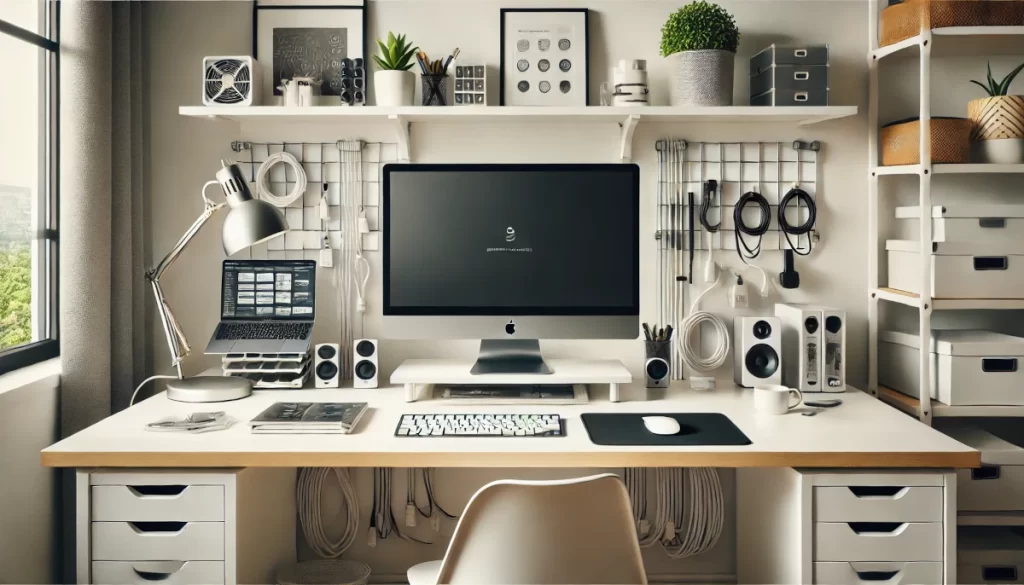
Let me tell you, folks, I’ve seen some home office setups that looked like a tech monster had exploded all over the desk.
Cables everywhere, tangled like a bowl of digital spaghetti. You couldn’t even find the end of a charger without playing a frustrating game of “follow the wire.”
But fear not, I’ve learned a thing or two about taming this wild beast of cable chaos, and I’m here to share my hard-earned wisdom with you.
Cable control: Tame that wire jungle
Alright, let’s tackle the elephant in the room – or should I say, the octopus on your desk. Cable management is like trying to herd cats, but trust me, it’s worth the effort.
I remember the day I finally decided to sort out my cables. I dove in like a warrior going into battle, armed with zip ties and cable clips.
First thing I learned? Label everything. And I mean everything. I once unplugged what I thought was my printer, only to realize it was my router.
Invest in some cable ties, Velcro straps, or cable wrap. They’re cheap, and they’ll save your sanity. Group cables together based on where they’re going. All your monitor cables? Bundled together. Keyboard and mouse? Another bundle and so on.
Oh, and here’s a pro tip: get a cable management tray for under your desk. It’s like a hammock for your cables. Keeps them off the floor and out of sight. Your vacuum cleaner will thank you.
Power management: Surge protectors and UPS – your electronics’ best friends
Now, let’s talk power. Specifically, protecting your precious gear from the evils of power surges. You don’t want to learn this lesson the hard way.
Invest in a good surge protector. And I’m not talking about those cheap power strips you can get for a few bucks. I mean a real, heavy-duty surge protector. It’s like a bodyguard for your electronics.
But don’t stop there. If you’re serious about your home office setup, consider a UPS (Uninterruptible Power Supply). It’s saved my bacon more times than I can count during unexpected power outages.
Nothing like the sweet sound of your computer staying on while the rest of the house goes dark.
And hey, bonus tip: look for surge protectors or UPS systems with USB ports. It’s a great way to charge your phone or tablet without adding more cables to your desktop setup.
Wireless wonders: Cut the cord where you can
Alright, time to talk wireless. Now, I was a bit of a wireless skeptic at first. I mean, who needs a wireless keyboard when you’ve got a perfectly good wired one, right? Wrong. So, so wrong.
Switching to wireless peripherals was like stepping into the future. No more cables snaking across my desk. No more accidentally yanking my keyboard when I reach for my coffee. It’s liberating!
Start with the basics – a wireless keyboard and mouse. Trust me, it’ll change your life. Then maybe consider a wireless headset for those video calls. No more getting tangled up when you stand to grab a file.
And let’s not forget wireless charging. A little pad on your desk for your phone and smart watch. Just plop it down, and it charges. No fumbling for cables.
Storage solutions: A place for everything, and everything in its place
Now, let’s tackle storage. Because a clutter-free desk is a productive desk. Or at least that’s what I tell myself when I’m procrastinating about organizing.
You don’t want to tackle an obstacle course just to find a pen. Welcome, the joy of desk organizers. Drawers, trays, little containers – they’re all your friends.
Get a good filing system for your papers. A combination of a small filing cabinet and cloud storage can be great space savers. Physical copies for important stuff, digital for everything else. It’s like having the best of both worlds.
Oh, and don’t forget about cable storage. I’ve got this nifty little box that hides all my extra cables and chargers. No more tangled mess in my drawer. It’s the little things that make a big difference, folks.
Aesthetics matter: Make your setup Instagram-worthy
Last but not least, let’s talk aesthetics.
Because let’s face it, we all want our home office to look good. It’s not just about impressing your colleagues during video calls (although that’s a nice bonus). A good-looking workspace can actually boost your mood and productivity.
Start with a color scheme, choose your favorite color, and go with a theme if you prefer something a bit more flashy.
Add some personal touches – a plant or two (if you can keep them alive, unlike me), some artwork, maybe a funky mousepad.
Another pro tip: consider the background for your video calls. I’ve got a nice bookshelf behind me. Makes me look smart, even on days when I don’t feel it.
A virtual background setup with a green screen might be an option for your setup.
So there you have it, folks. My guide to decluttering your digital life and creating a home office setup that’s both functional and fabulous.
Remember, it’s a process.
Rome wasn’t built in a day, and your perfect home office won’t be either. But with a little effort and a lot of cable ties, you’ll get there.
Now go forth and conquer that cable chaos!
Whew! We’ve covered a lot of ground, haven’t we?
Setting up the perfect home office computer might seem like climbing Mount Everest, but trust me, it’s more like a fun hike with a spectacular view at the end.
Remember, your home office setup is as unique as you are. Don’t be afraid to inject some personality into it! Whether it’s a funky mouse pad, a motivational poster, or a small plant to keep you company, make it a space that inspires you.
Now, it’s time for action! Start by assessing your current setup and identifying areas for improvement.
Take it one step at a time, and before you know it, you’ll have a home office computer setup that’ll make your coworkers green with envy during those video calls.
Thanks for joining me on this home office adventure.
Here’s to crushing your work goals, avoiding the dreaded “You’re on mute!” moments, and maybe even sneaking in a power nap during lunch (don’t worry, your secret’s safe with me).
Happy home office-ing 😉