
Did you know that the average person loses roughly 5 hours of productivity per month due to computer issues? That’s over 60 hours a year spent staring at frozen screens and dealing with mysterious error messages!
As someone who’s helped countless friends, family members, and customers rescue their digital lives, I can tell you that most computer problems are simpler to fix than you might think.
With computers becoming increasingly essential for both work and entertainment, knowing how to troubleshoot common issues isn’t just helpful – it’s crucial. Let’s dive into everything you need to know about home computer troubleshooting.
Common Software Issues and Solutions
My first encounter with the blue screen of death was during my early days of computer studies. My heart sank! But you know what? That crash taught me more about Windows error messages than any manual ever could.
Software troubleshooting is like being a detective. Those mysterious error codes? They’re clues. When a program freezes up (and trust me, we’ve all panic-clicked a frozen cursor), your first instinct might be to force-quit everything in sight. Been there, done that – and sometimes made things worse!
Here’s what I’ve learned about dealing with unresponsive programs: Wait 30 seconds before hitting that Ctrl+Alt+Delete. Sometimes your PC just needs a moment to catch up, like when you’ve got 47 browser tabs open (I’m not judging – we all do it!).
An eye-opener for me was learning about software conflicts. You wouldn’t believe how many times I’ve fixed a “mysterious” crash by updating a driver or checking for program compatibility. It’s like when your kids are fighting – sometimes they just need a little space from each other to work properly!
Let’s talk about malware because there are some doozies. My favourite story? A customer called me in a panic because their computer was “possessed” – turns out they had clicked on one of those “Congratulations, you’ve won!” pop-ups.
Pro tips: If you didn’t enter a contest, you didn’t win one. Always be cautious when clicking on links, particularly ones received in emails from senders you don’t know.
Quick fixes I’ve learned the hard way:
• Before panicking about a frozen program, press Windows + D to check if a dialogue box is hidden
• When your browser acts up, clear the cache first (it’s amazing how often this works!)
• A quick and easy way to open Task Manager – push Ctrl + Shift + Esc on your keyboard
• Create restore points before installing new software
Hardware Diagnostics and Repairs

Hardware diagnostics isn’t rocket science – it’s more like being a computer doctor with a stethoscope.
RAM testing is not only for tech geeks. One day, my PC started acting like it had too much coffee: random freezes, weird glitches, the works. Turned out one RAM stick was failing. If you can get your hands on a compatible stick of RAM, you can test by simply removing your current RAM modules and boot your machine with the test module.
Hard drive health is something I’m pretty passionate about. I’ve had customers lose important data because they ignored those weird clicking sounds. There are almost always warning signs – slow boot times, strange noises, random files disappearing – they’re your hard drive’s way of waving a red flag. They are fewer and further between nowadays with solid state drives but they too tend to fail.
Temperature monitoring changed my whole approach to PC maintenance. Did you know CPUs can get hot enough to fry an egg? (Please don’t try this!) I once had a gaming PC that kept shutting down during intense gaming sessions. The culprit? Dust bunnies having a party in my CPU cooler. Now I check temperatures like a nervous parent with a thermometer.
A good old-fashioned cleaning can save you hours or even days of downtime.
Speaking of power supplies – they’re like the heart of your computer. A dying power supply can cause weird symptoms that look like other problems. The best way to troubleshoot this (as with most components) is to swap it out with another one to test.
Performance Optimization Techniques
Can we talk about how satisfying it is to transform a sluggish PC into a speed monster? It’s like giving your computer a cup of strong coffee! My journey with system optimization started when my ancient laptop was taking 10 minutes to boot up. Ten. Whole. Minutes.
The first thing I learned about performance optimization was to start with the basics. Your startup programs are like party guests – too many, and things get crowded fast. This is easily fixable in the Task Manager.
File management is important. Temporary files are like digital dust bunnies – they just keep multiplying when you’re not looking. Cleaning out temp files and deleting unused programs. You can save up to 50GB of space by deleting Windows update files.
Here’s a game-changer: defragmentation isn’t just for tech nerds anymore. If you have any HDDs (hard disk drives), doing a regular defrag is like giving your PC a good massage – everything just works better afterwards. Note: SSDs (Solid State Drives) don’t need to be defragmented, and since Windows 10, the automated optimization of drives does a good job of keeping things smooth on that front.
Driver updates are like regular oil changes for your PC. Remember to create a restore point before doing any updates. You can schedule restore points by turning on Windows restore in Windows System Protection.
Quick optimization tips that actually work:
• Use Windows’ built-in Disk Cleanup as a first step
• Check your power plan – you might be in power-saver mode without knowing it
• Uninstall programs you haven’t used in 6 months
• Keep 15 – 20% of your hard drive free for optimal performance
System Maintenance Best Practices
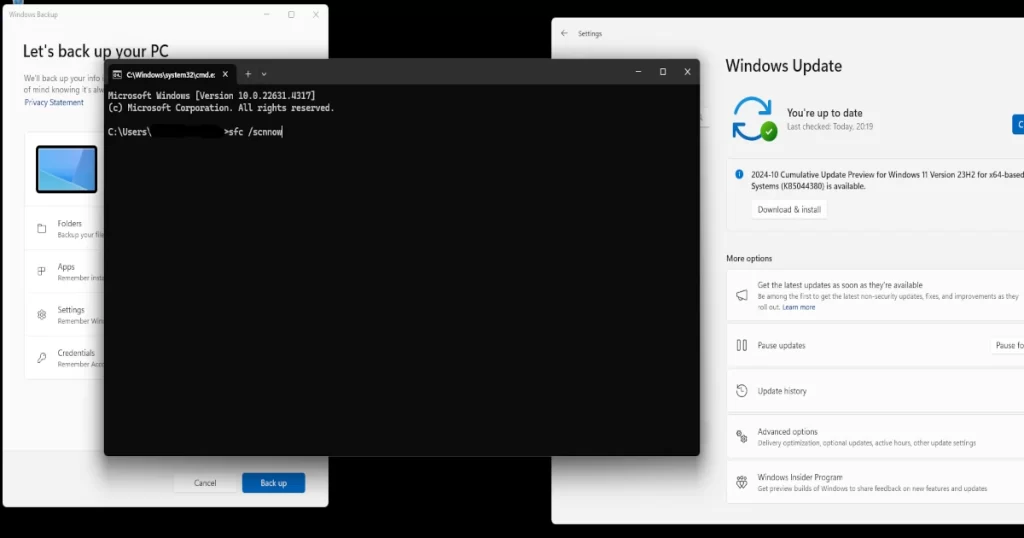
Let’s get real about backups. You know how everyone says you need them? No need to learn this lesson the hard way… Seriously, my friends and clients roll their eyes when I start preaching about data protection!
Preventive maintenance is like flossing – not exciting, but you’ll regret skipping it. Develop a routine for regular maintenance, whether it be once a week or once a month. Find a time that suits you and a process that you follow to get it done. You can use the standard Windows built-in tools or find some decent 3rd part apps to help. Most anti-virus software companies add maintenance tools to their software kit.
Full system backup: Windows has good system backup and restore tools. There are 3rd party apps and tools you can to simplify things, such as Acronis or Syncrify.
Security software is tricky. You need it, but too much is like wearing three winter coats at once – you’ll just end up slow and sweaty. Windows Defender is good, but other 3rd party software companies have proven to be better when releasing fixes and updates to combat viruses more efficiently.
Some well-known brands:
AVG
Kaspersky
Norton
Here’s my tried-and-true maintenance schedule:
• Weekly: Quick disk cleanup and malware scan
• Monthly: Deep system scan and driver check
• Quarterly: Backup review and software audit
• Yearly: Complete system health check
Advanced Troubleshooting Methods
Welcome to the fun part – where we get to play computer detective! Advanced troubleshooting is like solving a mystery, except the culprit is usually hiding in plain sight in the Event Viewer logs. Speaking of which, learning to read those logs was a total game-changer for me.
Command-line tools used to scare me. All that black screen and white text looked like something from “The Matrix.” But then I discovered the power of commands like ‘sfc /scannow’ – it’s like having a magic wand for fixing corrupt system files!
Command-line tools can be used through the Windows Command Prompt tool.
Clean Windows installations are the nuclear option, but sometimes they’re necessary. This is the last resort for fixing a corrupted Windows installation. On a modern home computer, a fresh install can take as little as 2 hours to get you up and running again, which can be days of downtime.
Data recovery brings back memories of a time when a customer almost lost 10 years of information and work for their company. They had a few faulty HDDs on their server. But here’s the thing – as long as you stop using the drive immediately, there’s usually hope.
I managed to get 100% of the data back for them using a data recovery specialist. This is not the route you want to take, as they can be costly.
For the most part, trying a software data recovery software is worth the investment, and there are some free options available.
Pro troubleshooting tips I wish I’d known sooner:
• Always check Event Viewer after a crash – a Google search for the error code can help find a solution
• Keep a bootable USB drive handy – you’ll thank me later
• Document what you try – troubleshooting amnesia is real
• Don’t be afraid of Safe Mode – it’s your friend
Don’t let computer problems hold you hostage! With these troubleshooting techniques in your toolkit, you’re well-equipped to tackle most common PC issues. Remember, prevention is often better than cure – regular maintenance and proactive monitoring can save you hours of frustration. Ready to become your household’s tech hero? Start by implementing these solutions today, and don’t forget to keep this guide handy for future reference!