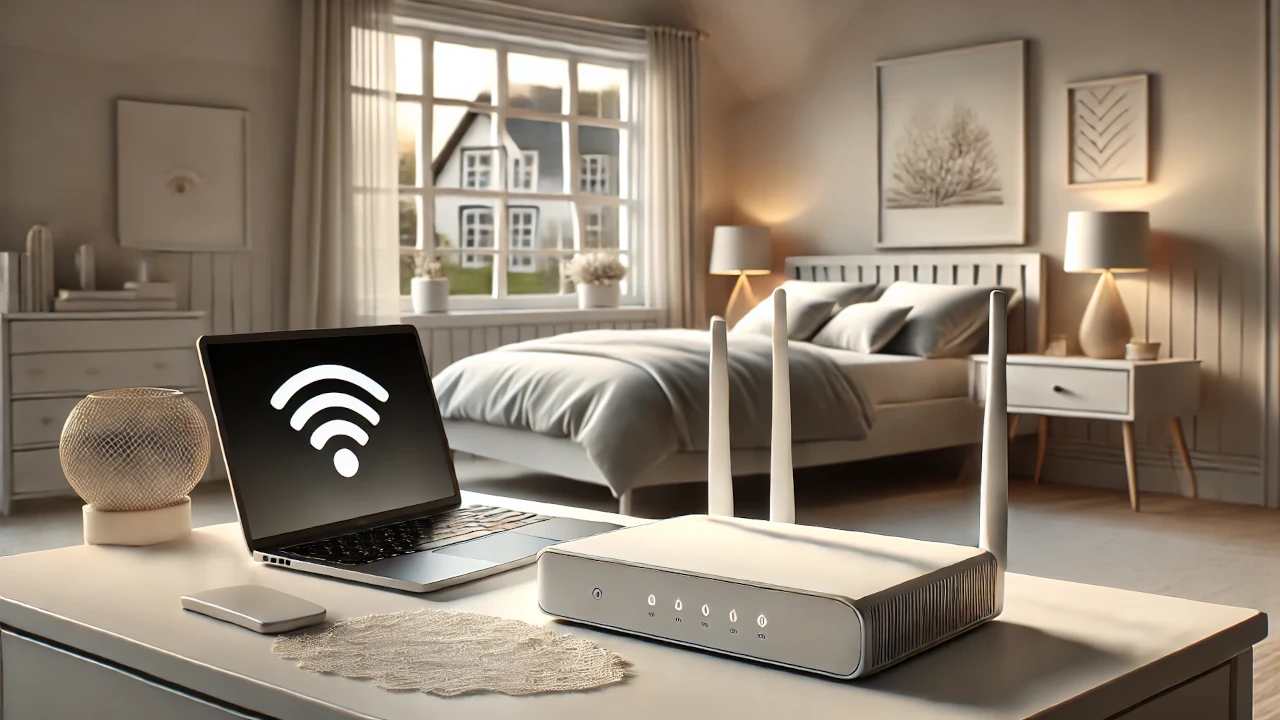
Imagine a world where your devices seamlessly connect, streaming movies never buffer, and your smart home runs like a well-oiled machine.
That’s the power of a solid home network! And what you can expect to find in this home networking basics guide.
Whether you’re a tech newbie or looking to upgrade your current home office computer setup, the tips in this home networking basics guide will demystify the world of home networking.
You can create a robust, secure network that meets all your digital needs!
Understanding Home Network Fundamentals
A home network is your house’s digital nervous system. It’s how all your devices—from smartphones and laptops to smart fridges and security cameras—talk to each other and connect to the Internet.
Think of it like a digital highway system where data zooms around faster than you can say “upload complete.”
There are two main types of home networks: wired and wireless. Wired networks use ethernet cables – those chunky cables that plug directly into your devices – which are reliable but not exactly pretty.
Most of us use wireless networks or WiFi. They’re convenient, letting you scroll Instagram from your couch without being tethered to a cable.
The basic network components are like the cast of a tech superhero movie. You’ve got the modem, which is your gateway to the internet, bringing that sweet connectivity from your internet service provider.
Then there’s the router, the real MVP that distributes the internet to all your devices. Some internet services are provided with one device with the modem and router in one.
Switches are like network multipliers, helping more devices connect when you run out of router ports.
Data travels through your network like a postal system. When you click “send” on an email or stream a video, your data is broken into tiny packets.
These packets zip through your network, sometimes taking different routes, before reassembling at their destination. It’s like a digital relay race happening in milliseconds!
Network performance and reliability are super important. A sluggish network can turn your smooth digital experience into a buffering nightmare.
I’ve been there – trying to join a video call and watching those spinning wheels of doom. Not fun!
That’s why understanding your network isn’t just for tech nerds; it’s for anyone who wants their internet to work.
Pro tips:
- Position your router centrally in your home
- Update firmware regularly
- Don’t hide your router in a closet or behind metal objects
- Consider your home’s layout when setting up network equipment
Network optimization isn’t rocket science, but it does take a bit of know-how. By understanding these fundamentals, you’re already ahead of the game.
No more mysterious internet issues or random disconnections – you’re becoming the network master of your domain!
Choosing the Right Network Equipment
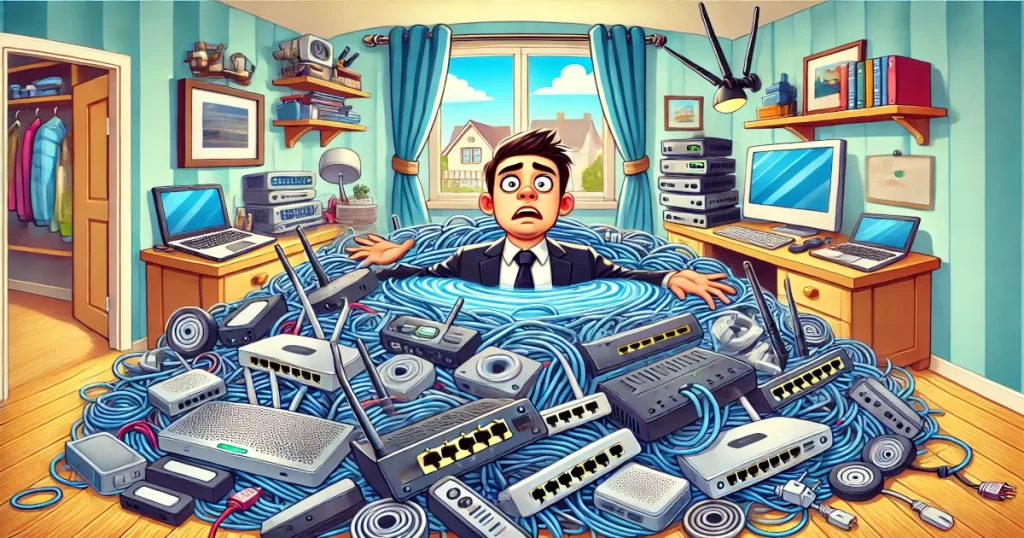
When I first started shopping for network gear, I felt like I was drowning in a sea of technical jargon. Modems, routers, switches. Let me save you from the confusion I went through.
Your modem is basically the translator between your home network and the internet service provider. It’s like a digital interpreter that brings internet signals into your house.
The router, on the other hand, is the traffic cop that distributes that internet to all your devices.
Think of it as the central hub of your home’s network.
Selecting the right router isn’t a one-size-fits-all deal. It depends on your home’s size and layout. Got a small apartment? A basic router might do the trick.
Two-story house? You might need a mesh network system that blankets your entire space with a WiFi signal.
WiFi standards can be super confusing. Let me break it down: WiFi 5 (802.11ac) was great, but WiFi 6 (802.11ax) is where it’s at in 2025. WiFi 6E is the newest kid on the block, offering faster speeds and less congestion.
Budget-wise, don’t go crazy but don’t cheap out either. I learned this the hard way after buying a bargain router that barely covered my living room. For 2025, I’m recommending brands like:
- Netgear Nighthawk series
- ASUS ROG gaming routers
- TP-Link Archer
- Google Nest WiFi
- Linksys Velop mesh systems
Mesh network systems are great for larger homes. Instead of one router struggling to cover everything, you get multiple nodes that work together. It’s like having WiFi relay runners passing the internet baton throughout your house.
Home Networking Basics Equipment Tips:
- Don’t just buy the most expensive option
- Consider your specific internet usage
- Read recent reviews
- Think about future-proofing
- Check compatibility with your internet plan
Setting Up Your Home Network Step-by-Step
Setting up a home network used to terrify me. But after years of trial and error, I’ve got a foolproof method that even tech-challenged folks can handle.
Router placement is crucial – and I mean crucial. Don’t stick it in a dusty corner or hide it behind a bunch of books. The central location is key.
Configuring router settings isn’t rocket science, but it does require some attention to detail. Here’s my step-by-step breakdown:
- Log into your router’s admin page
- Change the default admin password
- Update router firmware
- Choose a strong WiFi password
- Set up a guest network
- Configure basic security settings
Speaking of passwords, “password123” isn’t cutting it anymore. Create something complex but memorable. I use a passphrase method – like “ILovePizza2ExtraCheese!” – strong and easy to remember.
Guest networks are a lifesaver. Want your friends to have internet without giving them access to your main network or hosting Airbnb? Guest network. It’s like having a separate entrance for visitors – they get what they need without full access to your digital home.
Firmware updates are not optional. They’re like vaccinations for your network – protecting against potential security vulnerabilities. Most modern routers can auto-update, but double-check your settings.
Network security isn’t just for tech experts. Basic practices can protect you from potential digital intruders:
- Use WPA3 encryption for WiFi connectivity
- Disable remote management
- Turn off WPS
- Use a firewall – all good routers will have one, make sure it’s enabled
Troubleshooting Common Network Issues
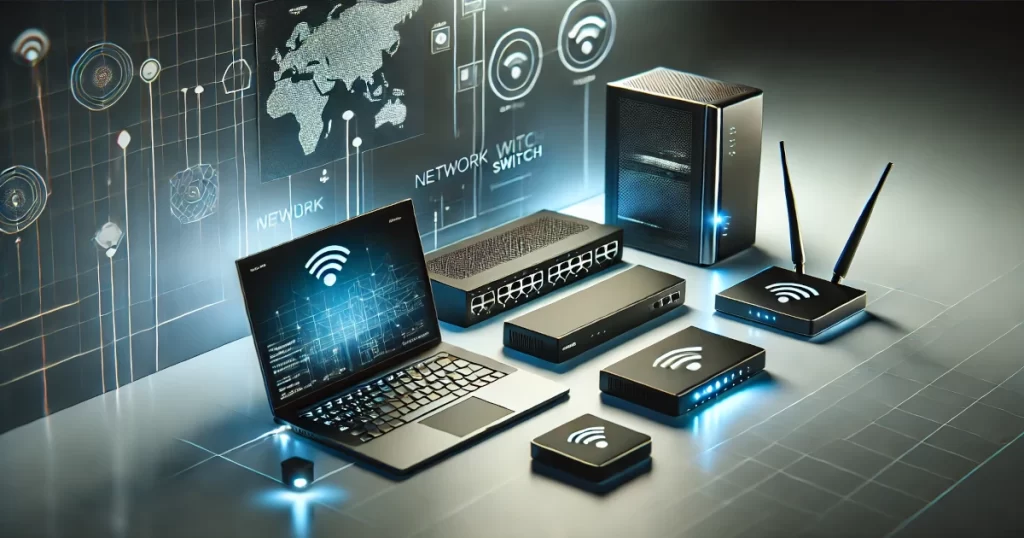
Network problems always seem to happen at the worst possible moment. Zoom meeting about to start? Internet crashes. Streaming the season finale? Buffering nightmare.
I’ve been there, and I’m here to help you become your own tech support hero.
Weak WiFi signals are the bane of modern existence. Before calling your internet provider, try these diagnostic steps:
- Restart your router and modem
- Check for physical obstructions
- Verify no interference from other devices
- Test signal strength in different rooms
- Consider WiFi analyzer apps to verify the channel conflicts
Slow internet speeds can drive anyone crazy!
Pro diagnostic tips:
- Run multiple speed tests when only one device is connected and using the internet
- Compare wired vs. wireless speeds
- Check for bandwidth-hogging devices
- Update router firmware
Connection drops are frustrating!
Some quick fixes:
- Check cable connections
- Update router firmware
- Adjust router channel
- Verify no interference
- Consider network extenders
DIY network optimization techniques:
- Position the router centrally in the coverage area
- Use the 5GHz band for faster speeds
- Limit the number of connected devices
- Use ethernet for stationary devices
- Regularly restart network equipment
Advanced Home Networking Concepts
Once you’ve mastered the basics, it’s time to level up your home network game.
Advanced networking isn’t just for IT professionals – it’s for anyone who wants more control and performance.
Quality of Service (QoS) settings are like traffic controllers for your internet.
Want to prioritize work video calls over your kid’s gaming? QoS lets you do that. It’s like having a digital VIP pass for important internet traffic.
Network Attached Storage (NAS) is a personal cloud server. Store all your photos, videos, and files in one secure location, accessible from anywhere.
Think of it as your own private Google Drive but with more control.
Smart home integration is the future. Your network isn’t just about the internet anymore – it’s the backbone of your entire digital home ecosystem.
Security cameras, smart thermostats, voice assistants – they all rely on a stable network.
Parental controls have gotten sophisticated!
Modern network management lets you:
- Set screen time limits
- Block inappropriate websites
- Create separate profiles
- Monitor internet usage
- Schedule internet access
Bandwidth management helps prevent internet traffic jams. You can allocate specific speeds to different devices or activities.
Working from home? Prioritize your work laptop. Movie night? Give the streaming device more juice.
Future-proofing your network means staying ahead of technology curves!
Invest in:
- WiFi 6 or 6E compatible equipment
- Mesh network systems
- Gigabit ethernet ports
- Robust security features
- Upgradeable firmware
Building a robust home network might seem daunting, but with the right knowledge and tools, you can create a seamless digital environment that supports all your connected devices.
Remember, a well-designed network is the backbone of your modern digital lifestyle.
In 2025, home networking has become more critical than ever, with the average household hosting over 17 connected devices, and it’s increasing.
Take the time to understand your needs, invest in quality equipment, and don’t be afraid to learn and adapt as technology evolves!
Ready to transform your home network? Start by assessing your current setup and implementing the strategies in this guide.
Your faster, more reliable internet awaits!