

Have you ever experienced the frustration of sluggish home computer performance, it just takes forever to boot up.
You’re not alone!
In my experience, computers lose performance within the first 3 years, depending on the usage, they lose a noticeable amount.
Whether you’re working with a home office computer setup, gaming, or simply browsing the web, a well-optimized computer can save countless hours of waiting and frustration.
The good news is that with some home computer troubleshooting and performance tips, you can master your machine.
In this comprehensive guide, I’ll share professional tips and techniques to breathe new life into your home computer and maximize its performance without breaking the bank.
Simply put, to speed up your computer and keep it running smoothly, keep the physical hardware and the operating system clean.
Table of Contents
Understanding Why Computers Slow Down
Computer slowdown is predictable, and more importantly, it’s often fixable without buying a brand-new machine.
If you’re going to speed up your computer, I assume you are because you are reading this article.
It will help you to complete the process if you understand the things that slow down a computer and the functions of the affected components.
Action steps:
Keep the physical hardware clean with a damp cloth (NOT DRIPPING WET) and an air blower to remove dust.
Blow air through visible vents, desktops usually have vents all around and laptop vents are found under or on the sides of the machine.
If you don’t have an air blower you can purchase an aerosol air can.
Note: Be careful with the high-volume blowers as they can damage things like fans.
Once that’s done, move on to the next step.
The Usual Suspects: Bloatware and Background Processes
Now onto the software where most of your time will be spent.
One of the biggest culprits behind computer slowdown is what we in the tech industry call “bloatware”—those unnecessary programs that come pre-installed on your computer or piggyback on other software installations.
Action steps:
Check the installed apps on your computer and remove the ones you don’t need. There are two locations for this on a Windows computer, the Microsoft Store and the Control Panel – Programs and Features.
Both can be found with a start menu search.
Note: You will need to research (with a Google search) the apps you are unsure of and remove the ones you know you don’t use.
Background processes are another major performance killer. These sneaky programs run invisibly, consuming valuable CPU and RAM resources even when you’re not using them.
Action steps:
Check the startup apps in the Task Manager and disable the ones that don’t need to start up with Windows. You can open the Task Manager with a key combination (Hold Ctrl+Shift & press Esc).
Note: Do a Google search for startup items you aren’t sure of but it’s safe to disable all but your antivirus software.
Temporary Files: The Digital Clutter

Every website you visit, file you open, and program you run creates temporary files that supposedly help things run faster. Well, it does but they need a good clean-out now and then.
The irony? When these temp files accumulate, they slow everything down.
I’ve cleaned out temporary internet files on computers and freed up over 6GB of space. Browsers went from taking 30 seconds to open to just 3 seconds.
You can manually delete the temp files with a Windows command. Hold the Windows key and press “r” on the keyboard.
The command box will open. Type %temp% and click ok.
The other option is with software tools.
Action steps:
Clean out the temporary files on your computer, temp internet, and temp update files.
Note: The simplest way to do this is with an app, the app I recommend is CCleaner. https://www.ccleaner.com/ccleaner
You only need to use the basic cleaning function and the registry cleaner.
Disclaimer: I am not sponsored by the developer. I am recommending this based on my personal experience, using and recommending the free version for over 15 years.
While I have never encountered any issues, I cannot guarantee the same for everyone. Any problems you may or may not experience are your responsibility.
Hard Drive Space: The Breathing Room Your Computer Needs
Operating systems need free space to function properly—not just for storing files, but for virtual memory operations and system tasks. Microsoft recommends keeping at least 15% of your hard drive free for optimal performance.
In the previous step, with CCleaner, it frees up temporary files, but in some cases, the duplicate or unused files just lie around and take up a lot of space.
Action steps:
Check your personal folders to confirm there’s no wasted space.
Essential Hardware Upgrades to Optimize Performance
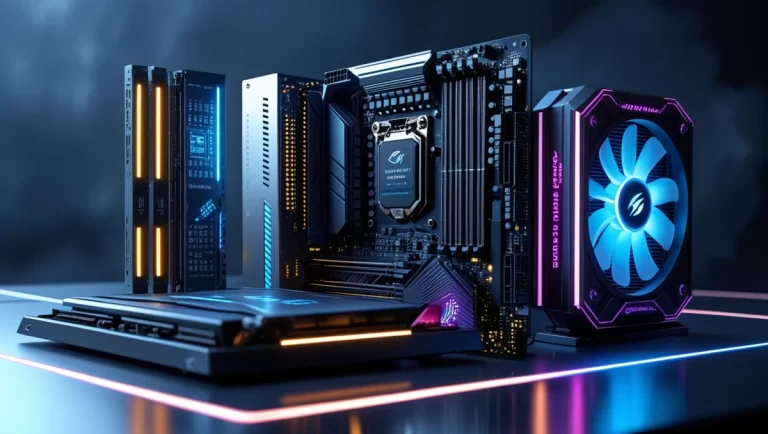
Over the years, I’ve learned that strategic hardware upgrades can breathe new life into an aging computer without breaking the bank. My neighbor was about to trash her “slow” laptop until I suggested a couple of simple upgrades. Now she brags about how fast it runs to anyone who’ll listen!
The four main hardware components that contribute to the speed of a computer are:
- CPU – Central Processing Unit – The brain of a computer. Heat is the enemy of speed for all computer components, the CPU is most susceptible. Because of this, a physically clean computer is important.
- HDD/SSD – Hard Disk Drive/Solid State Disk – These are the main storage components in a computer.
The HDD is the mechanical version and the SSD is the digital version, which is faster in terms of performance capabilities.
The speed of these is generally affected by an overload of files so keep them below 85% full. - RAM – Random Access Memory – The memory of a computer is like short-term memory. If the HDD/SSD is the dam, then the RAM would be the cup, and a computer only works with a cup at a time.
All applications or programs run in RAM when you open them.
The more RAM your computer has the more apps and browser tabs you can have open at a time. - Graphics card – This is the visual processor of a computer. This is only a concern for someone doing graphic editing or gaming. It’s not going to be a speed factor for most to look at but if your machine is slow on that new game, this is most likely the cause.
Action steps:
Determine if you need to upgrade any of the above-listed components. Use the task manager and check the performance tab. The main item you want to check is the RAM, but if your machine has a HDD, it might be time to upgrade to a SSD.
Your processor and graphics should be fine but if you see high usage counts on these two, it might be time to upgrade them.
Budget-Friendly Upgrade Path: Where to Start
If you’re wondering where to put your limited upgrade dollars, here’s my time-tested priority list based on what will give you the biggest performance boost per dollar:
1. SSD upgrade (if you still have a HDD)
2. RAM upgrade (if you have less than 16GB)
3. Graphics card (if you game or use creative applications)
4. Cooling solutions
5. CPU upgrade (often requires motherboard replacement, so consider this last)
I followed this exact upgrade path with my system over several years, spreading out the cost while getting the maximum benefit at each stage.
The beauty of this approach is that each upgrade stands on its own—you’ll notice improvements even if you only do the first one or two steps.
Remember, optimization isn’t always about having the newest, flashiest components.
Sometimes, it’s about making smart choices that extend the life of what you already have. That old computer might have more life in it than you think—it just needs the right upgrades to shine again.
Operating System Updates: The Security-Performance Connection
Beyond security, operating system updates often include performance improvements and bug fixes that can make your computer run more efficiently. Microsoft, Apple, and Linux distributors are constantly refining their code to run better on existing hardware.
In 2024, Microsoft released an update that significantly improved Windows 11’s memory management—computers with 8GB of RAM saw up to 20% better multitasking performance after this update.
If your machine isn’t doing updates it will miss out on this type of improvement.
Action steps:
- Enable automatic updates when possible
- Restart your computer regularly, not just a shutdown then a start, a RESTART, there’s a difference.
- Back up your data before major updates (just in case)
Driver Updates: The Unsung Heroes of Computer Performance
Drivers are the software that allows your operating system to communicate with hardware components. Outdated drivers can cause performance issues, crashes, and even security vulnerabilities.
Priority drivers to keep updated:
1. Graphics drivers (especially important for gaming and creative work)
2. Chipset drivers (affects overall system stability)
3. Network drivers (impacts internet performance)
4. Storage controllers (affects hard drive/SSD performance)
I recommend using the manufacturer’s websites (NVIDIA, AMD, Intel, etc.) rather than relying solely on Windows Update for driver updates.
Action steps:
Update all your drivers on a regular basis.
Browser Optimization: Where Most of Us Spend Our Time
Many of us spend the majority of our computer time in a web browser. A poorly optimized browser can make even the fastest computer feel sluggish.
Action steps:
- Limit extensions to those you use regularly
- Set up your browser to clear the cache periodically (or use CCleaner)
- Consider using a “lighter” browser for older computers
- Regularly close unused tabs
Remember, software optimization isn’t a one-time task but an ongoing process. If you make it a habit to perform these basic maintenance tasks quarterly, it will keep your computer running smoothly for years beyond its expected lifespan.
The best part, unlike hardware upgrades, most of these optimizations don’t cost a penny—just a little time and attention.
Advanced System Tweaking for Power Users

When I first discovered the world of advanced system tweaking, it felt like I’d been given the keys to a secret kingdom.
Fair warning though—changes in the BIOS and some of the next recommendations can do irreparable damage, so proceed with extra caution when doing anything with the BIOS or registry!
Performance gains can be substantial, but they require a delicate touch, some background knowledge, and research.
Let me share what I’ve learned through years of trial and error.
Note: All steps up to this point will keep your machine running fine. The next steps are not necessary for general smooth operation but are geared more toward getting all you can out of your machine.
If you choose not to perform further optimizing you can jump to the last section here.
Action steps:
Proceed with caution!
BIOS/UEFI: The Hidden Control Center
The BIOS (or UEFI on modern systems) is your computer’s fundamental control system that runs before your operating system loads.
Many never venture into these settings, but they contain powerful performance options.
My first BIOS tweaking experience came when I was trying to squeeze more performance out of an aging gaming PC.
By adjusting the memory timings and enabling XMP (Extreme Memory Profile), I achieved about a 7% performance boost in memory-intensive applications without spending a dime on new hardware.
Key BIOS/UEFI settings worth exploring:
- XMP/DOCP profiles for memory (enables advertised RAM speeds)
- Boot device priority (SSD should be first for fastest boot times)
- Fast Boot options (skips certain checks to speed up startup)
- Virtualization support (essential for running virtual machines efficiently)
- Fan curve adjustments (balance between cooling and noise)
Remember that BIOS/UEFI settings vary significantly between manufacturers and even between models from the same manufacturer. Before making changes, I always recommend:
- Make a backup of the BIOS, if you have the option
- Taking photos of original settings
- Changing only one setting at a time
- Testing thoroughly after each change
- Knowing how to reset your BIOS to default settings (usually by removing the CMOS battery or using a jumper, check the manufacturer’s website)
Word of caution from personal experience:
Be extremely careful with any voltage or overclocking settings unless you really know what you’re doing!
Action steps:
Check the list of BIOS settings above and optimize as/if needed.
Virtual Memory: The Extension of Your RAM
Virtual memory (or page file in Windows terminology) is how your computer uses hard drive space as an extension of physical RAM.
The default settings are adequate for most users, but customizing them can yield performance benefits in specific scenarios.
I discovered the impact of this when working with large Photoshop files on a computer with limited RAM. By moving my page file to a secondary SSD and adjusting its size, I reduced the lag when working with complex layers by nearly 40%.
For optimal virtual memory configuration:
- Ideally, place your page file on a different drive than your operating system
- If possible, use an SSD for your page file
- For systems with limited RAM (8GB or less), set the initial size to 1.5x your RAM amount
- For systems with ample RAM (16GB+), a smaller fixed size often works better
One trick I’ve found helpful:
If you have multiple physical drives, you can split the page file across them to improve performance further. Windows will use them in parallel, potentially increasing the speed of virtual memory operations.
Action steps:
Check and optimize your computer’s virtual memory if needed.
Power Plan Adjustments: Balancing Performance and Energy
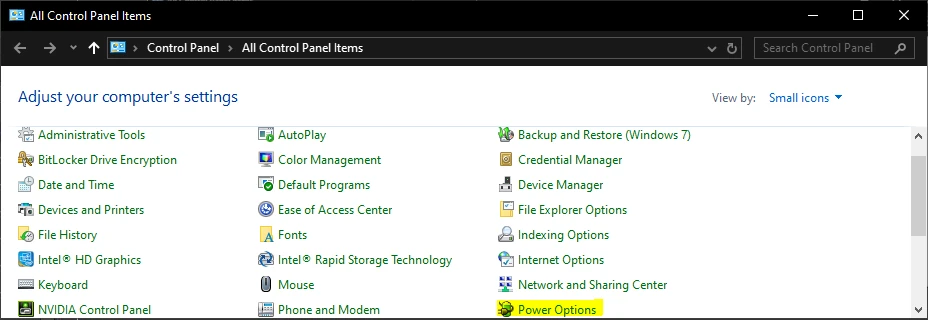
Many people don’t realize that their computer might be running at reduced performance to save energy—even when plugged in.
The default “Balanced” power plan in Windows tries to find a middle ground between performance and energy efficiency, but this can limit your computer’s capabilities.
After switching my desktop to the “High Performance” power plan, I noticed that CPU-intensive tasks like video rendering completed about 15% faster. The computer used more electricity, but the time saved was well worth it for my workflow.
Key power plan adjustments to consider:
- Switch to “High Performance” when plugged in and doing intensive work
- Customize processor power management for minimum and maximum processor state
- Adjust hard disk turn-off timing based on your usage patterns
- Fine-tune display brightness and turn-off timing
For laptop users, I recommend creating multiple power plans: one optimized for battery life when mobile, and another maximizing performance when plugged in.
Windows automatically switches between these as needed.
Action steps:
Create power plan/s according to the outline above for your needs.
Overclocking: Pushing Hardware Beyond Factory Settings
Overclocking is the practice of running hardware components (typically CPUs and GPUs) at speeds higher than their advertised specifications.
It’s the computer equivalent of tuning a car engine for better performance—when done right, the results can be impressive.
My first successful overclocking experience involved pushing an Intel i5 processor from its stock 3.2GHz to a stable 4.0GHz—a 25% frequency increase that translated to approximately 20% better performance in CPU-limited applications. However, this required upgrading my cooling solution and carefully testing stability.
Before attempting overclocking:
- Research your specific hardware components (not all are equally overclockable)
- Ensure your cooling solution is adequate (overclocking generates additional heat)
- Understand that overclocking may reduce component lifespan and void warranties
- Be prepared to spend time on gradual adjustments and stability testing
Modern overclocking is much more accessible than it used to be. Many motherboards offer one-click overclocking profiles, and utilities like Intel XTU or AMD Ryzen Master provide user-friendly interfaces for fine-tuning performance.
My personal approach is conservative overclocking—pushing for perhaps 80% of the theoretically possible gains while maintaining system stability and reasonable temperatures.
I’ve found this sweet spot provides worthwhile performance improvements without the risks associated with extreme overclocking.
Remember that advanced system tweaking is as much art as science. What works perfectly on one system might cause problems on another, even with identical components.
Always make incremental changes, test thoroughly, and keep backups of important data. When done thoughtfully, these advanced optimizations can extend your computer’s useful life and improve your daily experience without spending money on new hardware.
Action steps:
Perform hardware overclocking based on your needs and desires.
Creating a Calendar-Based Maintenance Schedule
The key to effective computer maintenance is consistency. After trying various approaches, I’ve found that setting up calendar reminders is the simplest way to stay on track.
A good maintenance schedule looks something like this:
- Weekly (takes about 5 minutes): Quick disk cleanup, empty recycle bin, check for critical updates
- Monthly (takes about 15-20 minutes): More thorough cleaning, checking startup items, updating software
- Quarterly (takes about 1 hour): Deep system cleaning, physical cleaning, backup verification
- Annually (takes about 2-3 hours): Complete system audit, hardware inspection, consider upgrades
I use Google Calendar with notifications sent to my phone, but any calendar system works. The important thing is creating those regular reminders.
I’ve found that scheduling maintenance for a specific time (like Sunday evenings) helps me actually follow through rather than constantly postponing it.
Pro tip:
The benefit of regular maintenance is catching potential problems before they become serious.
Action steps:
Create calendar reminders to complete computer maintenance tasks.
Malware: The Ultimate Performance Killer
Nothing will tank your computer’s performance faster than malware. I learned this by helping others whose machines took up to 10 minutes to boot and could barely open a web browser.
A thorough scan revealed multiple different malware infections competing for system resources!
After removing infections and implementing proper security measures, boot times drop to mere seconds.
For effective malware protection that doesn’t hurt performance:
- Use Windows Defender on Windows 10/11 (it’s quite good now and has minimal performance impact)
- Schedule scans during times you’re not using your computer
- Use on-demand scanners like Malwarebytes for occasional deep scans rather than running multiple real-time scanners
- Keep your scanning software updated (older versions often use more resources and can miss new threats)
One trick I’ve learned: exclude your performance-critical folders (like game directories) from real-time scanning, if they contain only verified files from trusted sources.
This can significantly improve loading times without compromising security.
Action steps:
Check for malware.
Safe Browsing: Prevention Is Better Than Cure

Most malware infections come through the web, which makes your browsing habits a critical factor in both security and performance. I used to click on pretty much anything interesting without a second thought—until I spent an entire weekend removing browser hijackers and crypto miners from my system.
Now I practice what I call “performance-focused browsing hygiene,” which protects both security and speed:
- Use an ad blocker like uBlock Origin (ads are often both security risks and resource hogs)
- Be cautious with browser extensions (each one uses memory and can potentially access your data)
- Regularly clear browsing data, especially if you notice slowdowns
- Use a password manager instead of saving passwords in your browser
- Enable click-to-play for plugins and media to prevent automatic loading
The performance impact of good browsing habits can be substantial. After helping my dad implement these practices on his aging laptop, YouTube videos stopped stuttering, and web pages loaded nearly twice as fast—all while improving his security posture.
Action steps:
Upgrade your browsing habits.
Antivirus Configuration: Finding the Sweet Spot
Many people don’t realize that antivirus software can be configured to balance protection and performance. The default settings often prioritize maximum security at the expense of speed.
My own computer used to slow to a crawl whenever my antivirus ran a scan or updated its definitions. After studying the settings and making some adjustments, I maintained protection while eliminating most of the performance impact.
Optimization tips for antivirus software:
- Schedule intensive scans for when you’re not using the computer
- Use gaming/silent modes when available during resource-intensive tasks
- Exclude trusted applications and locations from real-time scanning
- Consider disabling email scanning if you use web-based email (which is already scanned by the provider)
- Keep your antivirus updated (newer versions are often more efficient)
I’ve found that for most home users, Windows Defender with appropriate exclusions offers the best balance of protection and performance. Third-party solutions can be worthwhile if you need specific features, but be aware that some introduce significant performance penalties.
Action steps:
Optimize you anti-virus solution.
VPNs: Security That Can Affect Your Speed
When I first started using a VPN for privacy, I was disappointed by how much it slowed down my internet connection. Web pages took forever to load, and streaming video was nearly impossible. Through trial and error, I discovered that proper VPN configuration can minimize this performance hit.
Key factors that impact VPN performance:
- Protocol selection (WireGuard is generally faster than OpenVPN)
- Server location (closer is usually faster)
- Server load (avoid overcrowded servers)
- Split tunneling (routing only specific traffic through the VPN)
After optimizing my VPN settings, my connection speed improved from about 30% of my normal speed to around 85%—a huge difference that made the security benefits much more practical for everyday use.
For most home users, I recommend configuring your VPN to use split tunneling, where only sensitive traffic goes through the VPN while other traffic (like streaming or gaming) uses your direct connection. This provides security where it matters while maintaining performance for activities where privacy is less critical.
Action steps:
Optimize your VPN solution if needed.
The Bigger Picture
In closing, I want to emphasize that computer optimization isn’t just about speed and performance—it’s about sustainability, financial responsibility, and maximizing the value of the technology we already own.
In a world that often pushes us toward constant consumption and replacement, taking control of your technology through optimization is a small but meaningful act of resistance. It’s a way of saying, “This still has value. This can still serve me well.”
So before you resign yourself to the expense and hassle of replacing your “slow” computer, try some of the optimization techniques we’ve discussed. You might be surprised at just how much life remains in your current machine. Your wallet—and our planet—will thank you.
What’s next, if you still want to learn more about optimizing your home computer, check out the FAQ’s below.
If you are at the point where you need to upgrade you can check out my buying guides.
FAQ’s
How do I clean up my PC so it runs faster?
The two parts of cleaning a computer to make it run faster are the hardware and the software.
Both have been discussed in the article above, in summary:
The hardware needs to be kept free from dust and dirt.
The software needs the same treatment, it is just a bit different in that there are a few more steps, but in summary, old temp files need to be removed.
Does Windows 10 have a built-in optimizer?
Windows 10 and Windows 11 have basic built-in optimizers but are not sufficient for complete optimization, such as discussed in this article.


