Home computer security is an ongoing threat.
As our lives become increasingly digital, protecting our home computers has never been more critical.
Whether you’re working remotely from your home office computer setup, managing finances online from your phone, or simply browsing the web from the family laptop, your personal information is constantly at risk.
In this guide, I’ll share everything you need to know about home computer security. From basic protection measures to advanced security techniques, we’ll cover all the essential steps to keep your digital fortress impenetrable!
Table of Contents
Understanding Home Computer Security Threats
Let me tell you, the cybersecurity landscape has changed dramatically since I first started working in IT. Back in the day, we mostly worried about basic computer viruses that would mess up your files or slow down your system.
Now? The threats we face at home are sophisticated, targeted, and potentially devastating.
Today’s malware is sneakier than ever. Ransomware attacks for one… these attacks encrypt your personal data and demand payment for the decryption key. And paying doesn’t guarantee you’ll get your files back.
Phishing remains the number one way attackers gain access to home computers. These fake emails or messages trick you into revealing personal information or downloading malware.
They’ve gotten so sophisticated that sometimes even I have to look twice! The newest phishing attempts are using AI to create incredibly realistic messages that appear to come from friends or trusted companies.
What many people don’t realize is that home networks are often targeted differently than business networks.
While businesses might face sophisticated attacks aimed at intellectual property, home users are typically targeted for personal data that can be used for identity theft or financial fraud.
Your tax returns, medical records, and even family photos can be extremely valuable to cybercriminals.
The average cost of identity theft recovery for a home user is over $1,200, not counting the emotional stress and time investment.
I know of people who spent months trying to restore their credit after having their identity stolen through a home computer breach.
Understanding these threats isn’t about paranoia—it’s about awareness.
Just like locking your doors at night, securing your digital life should be second nature. Never forget the importance of proactive protection for your digital life.
Food for thought. Did you know that over 2,200 cyberattacks occur daily, with a new attack happening approximately every 39 seconds (according to a study done in 2023)?
Essential Software Protection Measures
When it comes to protecting your home computer, having the right software is like having a good security system for your house—it’s your first line of defense.
Let’s talk about antivirus software first. In 2025, you need more than just basic virus protection—you need comprehensive security that covers malware, spyware, and ransomware.
Based on my testing and experience, Bitdefender, Norton, and Kaspersky still offer some of the best protection for home users.
However, don’t sleep on Microsoft Defender either! It’s come a long way and now provides solid protection right out of the box for Windows users.
The eternal question: free or paid? I’ve tried both extensively. Free options like Avast Free and AVG can provide decent basic protection, but they often bombard you with upgrade notices and lack advanced features.
For complete peace of mind, the $30-60 annual investment for a premium solution is worth every penny. The additional ransomware protection and customer support alone justify the cost.
Here’s something many people miss: your security software is only as good as its updates.
I can’t stress enough how important regular software updates are for all your programs, not just your antivirus. Those “annoying” update notifications?
They’re often patching critical security vulnerabilities.
Browser extensions have become an essential part of my security setup. Extensions like uBlock Origin, Privacy Badger, and HTTPS Everywhere add crucial layers of protection when browsing.
They block malicious ads, prevent tracking, and ensure encrypted connections. Just be careful not to overload your browser with too many extensions, as this can create conflicts and reduce security and browsing.
Don’t overlook the built-in security features of your operating system! Windows Security Center and macOS Security & Privacy settings offer powerful tools that many users don’t configure properly.
For Windows users, make sure you’ve enabled Controlled Folder Access (which helps prevent ransomware), and consider setting up Windows Sandbox for testing suspicious applications.
Mac users should check that their Firewall is active and review which apps have permission to access sensitive data like your contacts or location.
Remember that no security software is 100% effective if you don’t practice safe computing habits alongside it.
Think of it like wearing a seatbelt but still driving carefully—both are necessary for maximum protection.
Creating Strong Password Protection Systems
Passwords—we all hate creating them, remembering them, and changing them. But they’re the keys to our digital kingdom.
Creating strong passwords isn’t just about throwing in random numbers and symbols (though that helps). It’s about length and uniqueness.
Each of your passwords should be 12 – 16 characters long and completely different for every account. I know what you’re thinking—”There’s no way I can remember all those!” And you’re right. You shouldn’t try to.
This is where password managers become your best friend. I’ve been using one for years now, and it’s changed my digital life.
Tools like LastPass, 1Password, and Bitwarden not only store your passwords securely but also generate complex ones for you.
Setting up a password manager can be quick to set up, and it saves countless hours and headaches down the road.
Multi-factor authentication (MFA) is another layer you should implement wherever possible.
This means that even if someone somehow gets your password, they still can’t access your account without the second verification method—usually a code sent to your phone or generated by an app like Google Authenticator.
Speaking of phones, biometric security options like fingerprint and face recognition add convenience without sacrificing security.
I’ve set up laptops and phones to use fingerprint recognition for everyday access while maintaining strong passwords behind the scenes. It gives the best of both worlds—security and convenience.
One thing people often forget about is recovery information. Where do you store the backup codes for your accounts? What about your password manager’s master password?
Keeping a printed copy of critical recovery codes in a secure location at home is a solution. Also make sure that trusted family members know where to find it in case of emergency.
Remember—your password system is only as strong as its weakest link. Even one reused or weak password can compromise your entire digital life.
Take it from someone who learned from experience: investing time in creating a solid password protection system is one of the smartest things you can do for your home computer security.
Securing Your Home Network
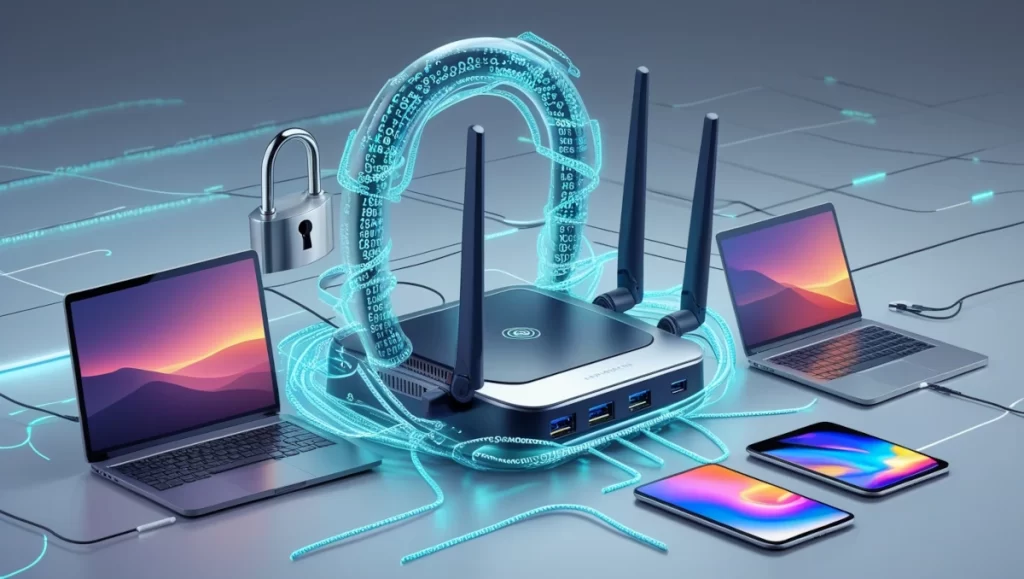
Your home network is the gateway to all your connected devices, and if it’s not properly secured, it’s like leaving your front door wide open.
Let’s start with router security, which is the foundation of your home network protection. First things first: change those default login credentials!
Manufacturers often use the same username/password combinations across thousands of devices, and these defaults are widely known to hackers. I recommend creating a unique admin password that’s different from your Wi-Fi password.
Router firmware updates are another critical step that many people overlook. Your router, just like any other device, needs regular updates to patch security vulnerabilities.
I’ve made it a habit to check for firmware updates every few months. Most newer routers have automatic updates—if yours does, make sure that feature is enabled.
When it comes to setting up your Wi-Fi network, always use WPA3 encryption if your router supports it. If not, WPA2 is the minimum you should accept.
Avoid WEP like the plague—it can be cracked in minutes!
I also recommend creating separate networks for your main devices and IoT gadgets. Most modern routers support guest networks, which are perfect for isolating smart home devices that might have weaker security.
One tool that’s dramatically improved my home network security is a VPN (Virtual Private Network).
I use one when I’m handling sensitive information online, especially when using public Wi-Fi, but it’s also helpful at home.
It encrypts your internet connection, making it much harder for anyone to snoop on your online activities. I tried several before settling on one that doesn’t slow down my connection too much while still providing solid security.
Network monitoring has become increasingly important as our homes fill with more connected devices. Tools like Glasswire or Fing can show you exactly what’s connected to your network and alert you to suspicious activities.
Run a network scan once a week to make sure there are no unauthorized devices piggy-backing on your connection. It only takes a few minutes but provides valuable peace of mind.
Another step that made a huge difference for me was disabling remote management on my router.
Unless you specifically need to access your router settings from outside your home (most people don’t), this feature should be turned off to eliminate a potential entry point for attackers.
For families with kids, setting up proper parental controls at the router level can both protect your children and your network.
Most modern routers include options to filter content, limit screen time, and even pause internet access during certain hours.
Remember that your home network security is only as strong as its weakest link. One improperly secured device can compromise everything else connected to the same network.
Safe Browsing and Email Practices
The internet is like the wild west sometimes, and your browsing habits are often the difference between staying safe and stepping into digital quicksand.
Let’s talk about safe browsing habits.
The golden rule I now follow is: when in doubt, don’t click. Hovering over links before clicking them shows you the actual URL destination, which can reveal suspicious addresses.
Email remains the number one vector for cyberattacks targeting home users. The sophistication of phishing attempts in 2025 is honestly scary—they’re using AI to create personalized messages that reference information available about you online.
I now look for several red flags: urgent requests for personal information, unexpected attachments, grammar mistakes, and email addresses that don’t exactly match the official domain.
One practice that’s saved me multiple times is verifying requests through a different channel.
If I get an email from my “bank” asking me to log in, I don’t click the link—instead, I manually type the bank’s website in my browser or call them directly.
It takes an extra minute but can prevent close calls.
Private browsing features like Chrome’s Incognito Mode or Firefox’s Private Browsing are useful tools, but they have limitations many people don’t understand.
While they prevent your browser from saving your history locally, they don’t make you anonymous online. Your ISP, employer, and visited websites can still track your activity.
I use private browsing when shopping for gifts or researching sensitive topics, but I don’t rely on it for complete privacy.
When it comes to downloads, I’ve developed a healthy paranoia.
Before downloading any file, I ask myself: Did I request this file? Do I trust the source? What type of file is it?
Executable files (.exe, .msi, .bat) require extra caution. When possible, I scan downloads with my antivirus before opening them. This habit has flagged several suspicious files that looked legitimate at first glance.
Secure online shopping and banking require additional precautions. I only make purchases from sites that use HTTPS (look for the padlock icon in your browser).
For extra protection, Use a dedicated credit card with a low limit for online purchases rather than linking your main account/s. Some banks even offer virtual card numbers for one-time use.
Email attachments deserve special mention because they’re so often used to distribute malware. My rule of thumb: if I’m not expecting an attachment, I don’t open it without verifying with the sender first.
This is especially true for document files with macros, as these can contain malicious code.
Ad blockers should become an essential part of your daily browsing toolkit. Not only do they make websites load faster, but they also block many malicious ads that can lead to drive-by downloads.
Finally, I’ve found that keeping separate browsers for different activities adds an extra layer of security. I use one browser for banking and sensitive accounts, and another for general browsing and less secure activities.
This compartmentalization limits the potential damage if one browser is compromised.
Remember, safe browsing is a habit, not a one-time setup. It requires ongoing vigilance and sometimes means sacrificing convenience for security.
But trust me—the peace of mind is worth it!
Data Backup and Recovery Strategies
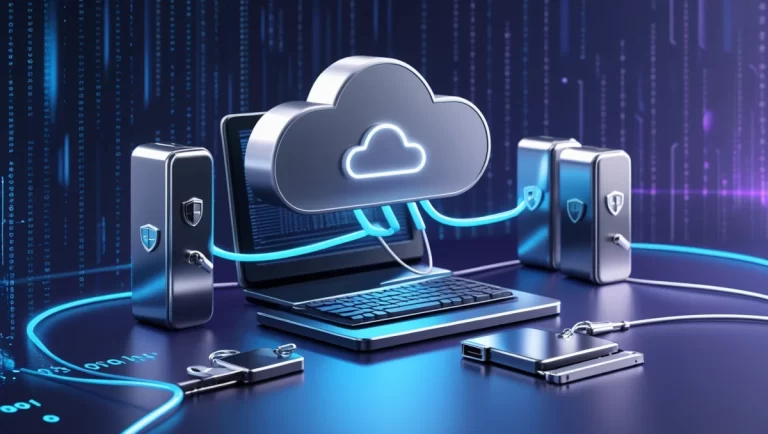
The gold standard for home computer backup is what experts call the 3-2-1 strategy: keep at least three copies of your data, store two backup copies on different storage media, and keep one copy offsite. It sounds complicated, but implementing it is simpler than you might think.
Let’s break down the cloud versus local backup debate. Both have their strengths, which is why I use a hybrid approach. Cloud backups like Google Drive and One Drive provide automatic, offsite storage that protects you from physical disasters like fires or floods.
However, cloud backups have limitations—they depend on your internet connection and can be slow to restore large amounts of data. That’s where local backups shine.
External hard drives are inexpensive these days; you can get a 5TB drive for under $100.
Ideally, keep two external drives in rotation: one connected to your computer for weekly backups using your operating system’s built-in tools (Time Machine for Mac or File History for Windows), and another stored in a different location that you can update monthly.
Encryption for backed-up data is non-negotiable for sensitive information. Most cloud backup services offer encryption, but the highest security comes when you control the encryption key yourself.
Just remember that if you forget this key, the backup service cannot help you recover your data—I keep my encryption keys stored in my password manager with a backup printed and stored securely.
One aspect of backup that many people overlook is testing the recovery process. A backup is only as good as your ability to restore from it!
Perform a test restore of random files every few months to make sure your backups are working correctly.
For critical documents—things like tax returns, legal documents, and irreplaceable photos, implement additional backup measures.
These files can be backed up to a separate encrypted USB drive and stored in a fireproof box. It might seem like overkill but, I don’t consider any precaution too extreme for truly irreplaceable data.
Automated backup tools: I’ve configured backups to run automatically—daily to the cloud and weekly to an external drive. This way, even when life gets hectic, data remains protected.
Don’t forget about your mobile devices! Your phone probably contains photos, messages, and app data that you wouldn’t want to lose. Make sure your phone backs up to both the cloud (iCloud or Google Photos) and to your computer regularly.
Finally, keep your recovery media accessible. For system backups, having a bootable USB drive with your operating system can save hours of restoration time.
Remember, the best backup system is one that you use consistently. Start simple if you need to, but start today—before you have your own data loss horror story to tell.
Protecting Multiple Devices in Your Home
The days of having just a single computer in the house are long gone. These days a home can have laptops, smartphones, tablets, smart TVs, gaming consoles, and even a smart refrigerator!
Each connected device represents a potential entry point for hackers.
Managing security across multiple devices requires a strategic approach. I’ve found that creating a security inventory is a helpful first step. Keep a simple spreadsheet listing every device connected to your network, when it was last updated, and any specific security measures in place.
This might sound like a lot of work, but it only takes an hour to set up and a few minutes to maintain.
Smartphones and tablets that connect to your computer deserve special attention since they often contain access to the same accounts and data. I make sure every mobile device in our home has:
- A strong PIN or biometric lock (preferably both)
- Automatic OS updates enabled
- Find My Device functionality activated
- Regular app audits to remove unnecessary applications, generally weekly
- Encrypted backups
The explosion of IoT (Internet of Things) and smart home devices has created new security challenges.
Many of these gadgets have notoriously weak security. Isolate all smart home devices on a separate guest network, which prevents them from accessing your main computers and data if compromised.
For families with children, security takes on an additional dimension. Kids are naturally curious but don’t always understand the risks online.
Implemented age-appropriate controls on children’s devices, but more importantly, have regular conversations about online safety with them.
Rather than just restricting access, try to teach them why certain precautions are necessary—treating it as an opportunity to build digital literacy.
Centralized security management has been a massive time-saver for our household. I use a combination of:
- A password manager with family sharing capabilities
- A whole-home VPN solution that covers multiple devices
- A router with comprehensive parental controls and device management
- A family plan for our antivirus/security software
One often overlooked aspect of multi-device security is update management.
Different devices have different update schedules, which can be overwhelming to track so implement automation wherever possible.
Mobile device security deserves special mention because phones and tablets often contain a treasure trove of personal information. Beyond the basics, I’ve found it helpful to:
- Disable unused features like Bluetooth and NFC when not needed
- Review app permissions regularly (does that game really need access to your contacts?)
- Use privacy-focused apps where possible
- Install a mobile security solution that includes anti-theft features
For work-from-home situations, keeping work and personal devices separate whenever possible adds an important layer of security. When I started working remotely, I created a separate user account on my personal computer for work activities, which helps maintain some separation.
Remember that device security isn’t just about protecting against remote hackers—physical security matters too.
We keep our router and network equipment in a less accessible area of the house, and I’ve taught everyone in the family to lock their devices when not in use, even at home.
Managing multiple devices can feel overwhelming at times, but approaching it systematically makes it manageable.
Start with your most critical devices, establish good security habits, and gradually expand your security perimeter to include everything connected to your home network.
Final Thoughts on Home Computer Security
Securing your home computer isn’t just about installing antivirus software—it’s about adopting a comprehensive security mindset.
By implementing the strategies outlined in this guide, you’ll significantly reduce your risk of becoming a victim of cybercrime.
Remember that security is an ongoing process, not a one-time setup.
Stay informed about emerging threats, regularly update your protection measures, and always prioritize your digital safety.
Your personal data is invaluable—protect it accordingly!
FAQ’s
What is the best security for your home computer?
The best security for your home computer is a complete strategy of a comprehensive system-wide lockdown.
This includes habit change and software settings implemented as described in the article above.
How do I physically secure my computer?
There are a few ways to physically secure a computer. The two most common ways are a secure enclosure or a cable lock.
Do home computers need virus protection?
Yes, home computers do need antivirus protection.
What is the best antivirus for home computers?
The best antivirus for home computers is one that has comprehensive protection that does not drain the system’s resources.
The other important factor is that the developer is a reputable company that keeps up to date with updates, ensuring their customers’ systems are protected.
Is Microsoft Defender good enough?
Yes, Microsoft Defender is good enough for basic file and general system protection.